
Using the AppViewX Chatbot 
To access the chatbot:
-
Login to your SaaS account.
The AppViewX Platform landing page is displayed.
-
To access the AppViewX chatbot, click
 from the
bottom-right corner of the screen.
Note: This chatbot icon is available on all product screens, enabling you to send a request at any point during a process.The Contact Us pop-up window is displayed.
from the
bottom-right corner of the screen.
Note: This chatbot icon is available on all product screens, enabling you to send a request at any point during a process.The Contact Us pop-up window is displayed.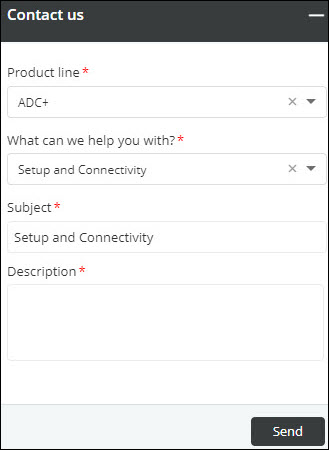
-
Select the Product Line.
Choose the relevant product from the Product Line dropdown menu:
- CERT+
- PKI+
- SIGN+
- SSH+
- KUBE+
- DDI+
- ADC+
Tip: Select the product that matches the issue you're experiencing. -
Choose the relevant Support Category from the What can we help you
with? dropdown menu:
- Setup and Connectivity
- Download/Installation
- Artifacts/Solution Guides
- System Impaired
- Request for upgrade
- Request for trial extension
- Critical
- Others
Tip: Select the option that best describes your issue to ensure faster resolution. -
The Subject field is automatically populated based on
the category you selected in the What can we help you
with? field.
You can edit this field if changing the subject line helps clarify your request.
-
Enter a Description.
Type a brief summary of your issue in the Description text box. You have up to 255 characters.Note: Be specific. Include error messages, steps taken, or expected outcomes.
-
Click Send to submit your request.
A confirmation message appears after the support ticket is created.
Depending on the category selected, in the What can we help you with? field, the relevant AppViewX support team will get in touch with you.
