Selecting Inventory Columns
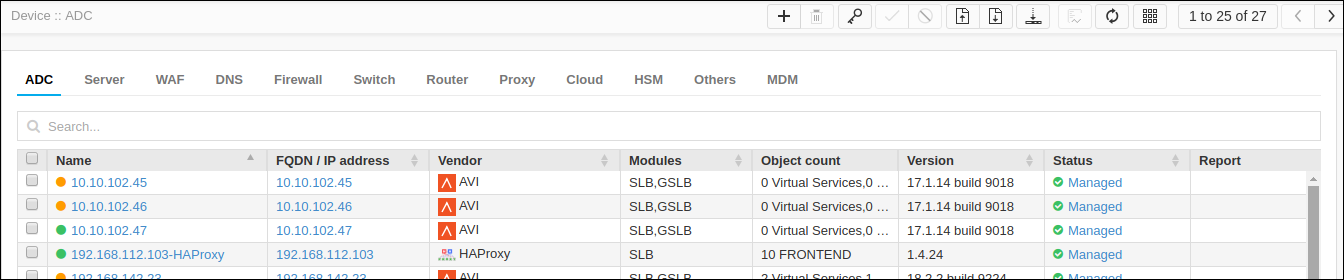
The user can select or unselect the list of columns to be displayed in the inventory page using this action.
- Select Menu > ADC+ > ASSET MANAGEMENT > Device Inventory.
- Go to Menu > ADC+ > ASSET MANAGEMENT > Device Inventory.
- Click on the Columns icon.
-
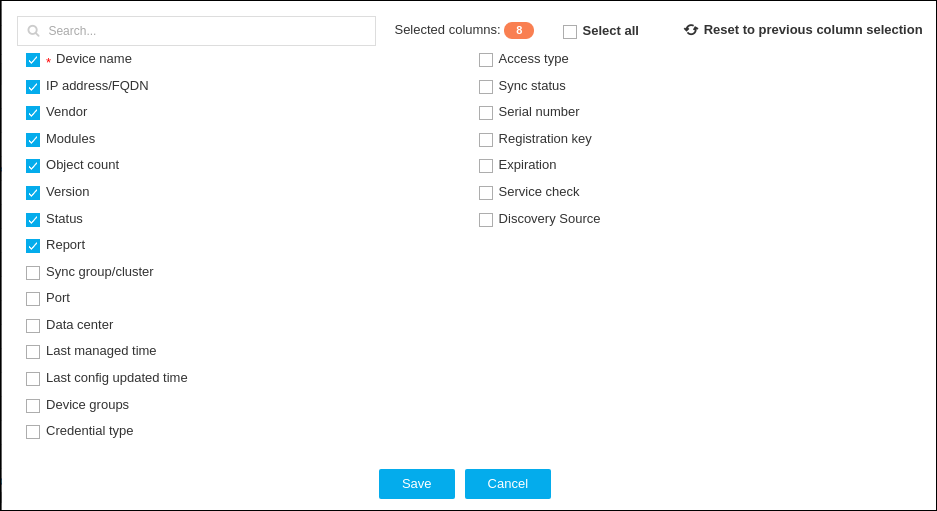
In the popup window, select or unselect the columns to be displayed in the
inventory page.
-
Click Save.
Once the user selects the columns to be displayed in the inventory page and saves the data, the device inventory page will be reloaded again with the selected columns.