
Assign Devices to Resource
-
In the new menu, go to Menu >
Platform > ACCESS MANAGEMENT >
Quick Config.
Note: In the old menu, go to Menu > Settings > General > Authentication, and then click Quick Config
- On the RBAC Journey :: Authentication page, select RESOURCES radio button within wizard flow to add device to the resource.
-
In the Rules tab, click
 .
.
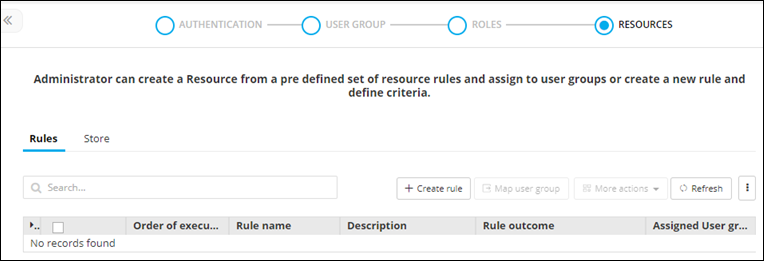
-
The Rules :: Create screen is displayed.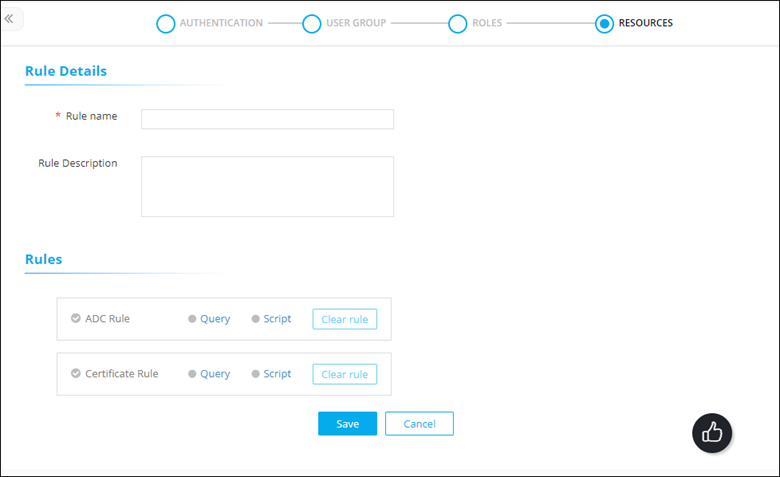
-
In the Rule Details section, enter the following details:
Table 1. Rule Details - Field and Descriptions Table Field Description *Rule Name Resource name. Rule Description Brief description of the resource/granular level accesses associated with the resource. Note: *: Mandatory fields -
To configure a rule to dynamically tag ADC objects using Query, select
Query in the Rules section,
for the Device Rule.
The Rule builder :: Device Rule action pane is displayed.
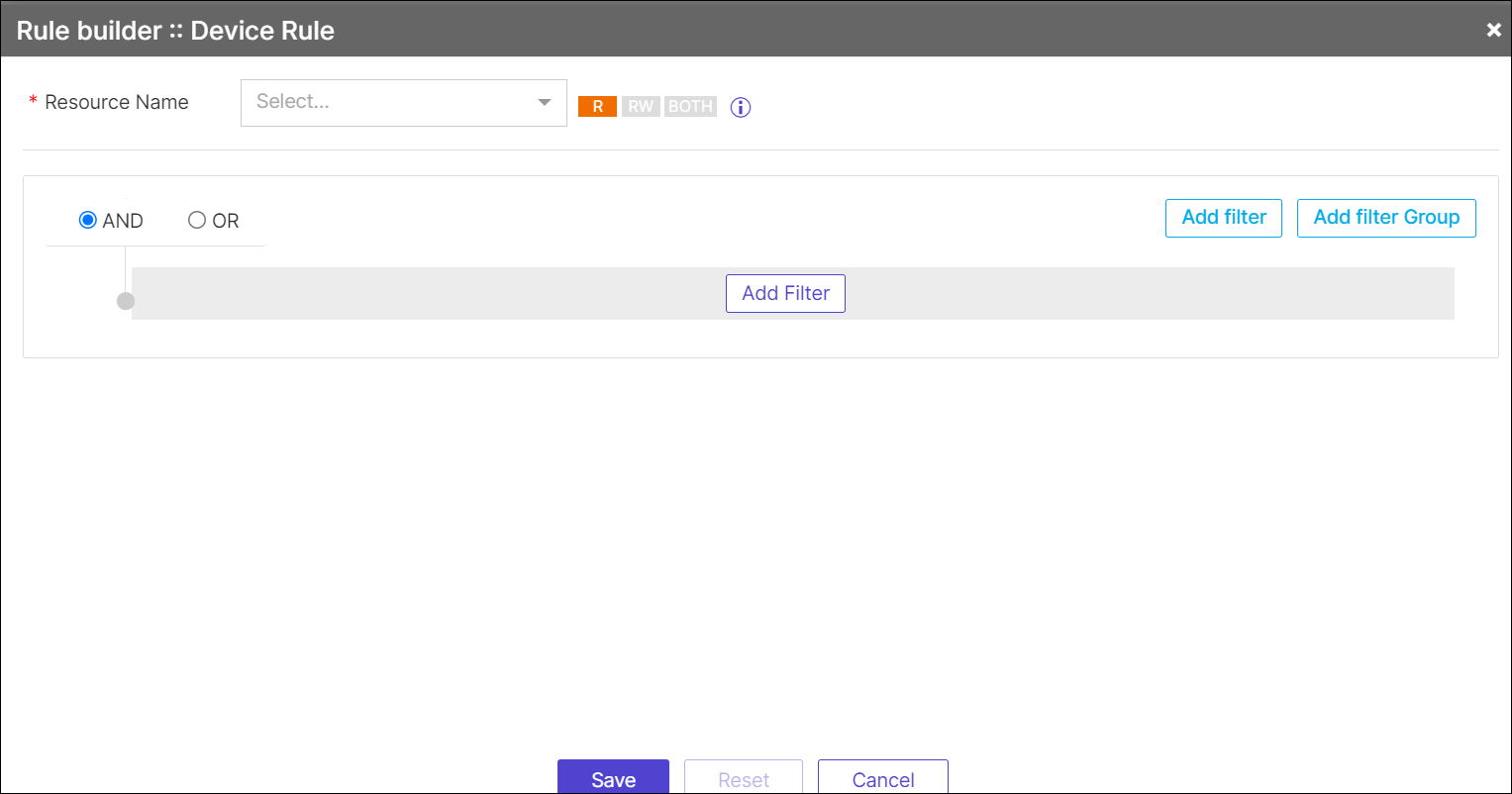
- Select the Resource Name from the drop-down list, R/RW permission, and then AND or OR condition for monitoring the dynamic tagging of ADC devices based on rule condition.
- Click Add Filter.
- Select the field information from the drop-down list.
- (Optional) Add filter group by clicking Add filter Group and then select the field information from the drop-down list.
- Click Save.
