
Integration Hub Vendor Actions
For each vendor on-board in the integration hub, the following actions can be performed when you hover over the vendor tile.
Viewing Status
To view status of the configuration sync when a vendor is on-boarded or triggered
manually, perform the following steps.
- Go to DDI+ > INTEGRATION HUB,
and then click the View status icon on the
vendor.
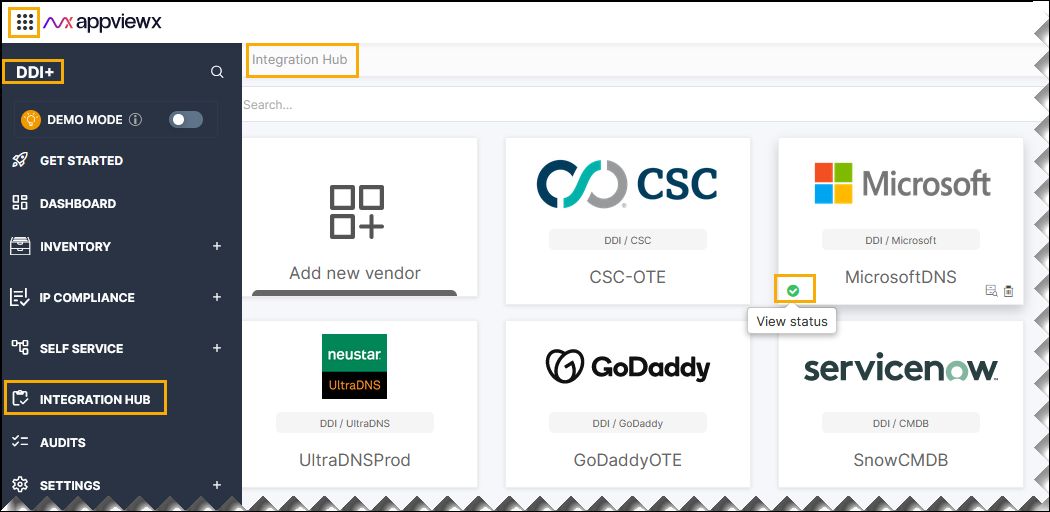
The Vendor Status Log window is displayed.
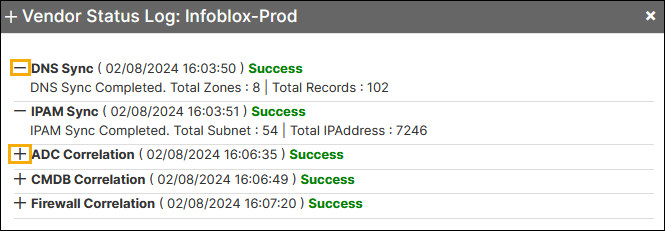
- Click the (+) maximize icon that you want to view the status log.
- Click the (-) minimize icon that you want to view the status log.
Triggering Config Sync
Users can manually trigger the config sync by clicking the Config
sync button. To trigger the config sync, perform the following
steps.
- Go to DDI+ > INTEGRATION HUB,
and then click the Confg sync icon on the
vendor.
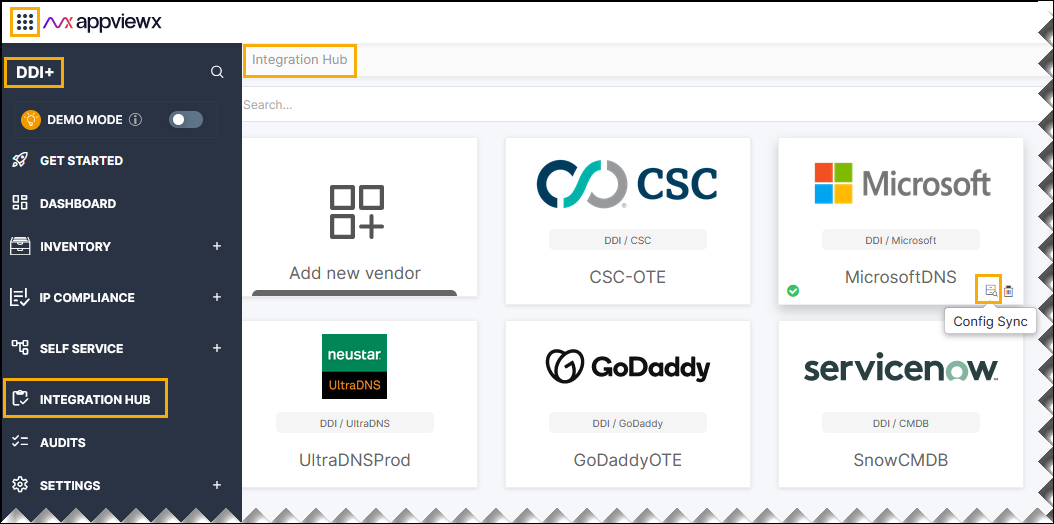
- The pop-up message is displayed as Operation performed successfully.
Deleting Vendor
To delete the vendors and its associated configuration from AppViewX, perform the
following steps.
- Go to DDI+ > INTEGRATION HUB,
and then click the Delete icon on the vendor.
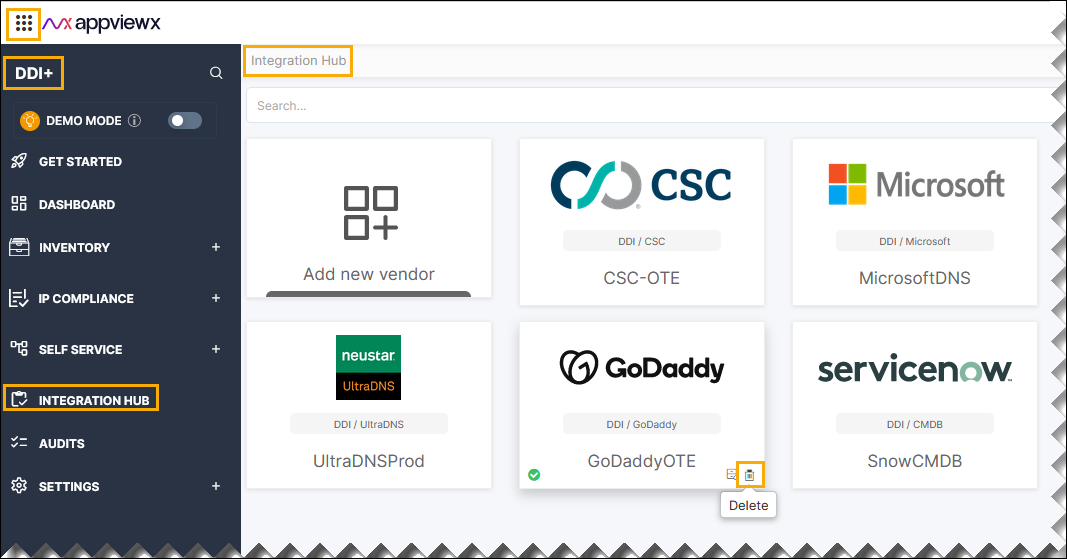
- The pop-up message is displayed as Do you want to delete the vendor configuration ?.
- Click Ok
- The pop-up message is displayed as Operation performed successfully.
