Generating Domain Expiry Report
- Domains that have expired
- Domains that will expire in a specific number of days
- List of all domains
To generate any of these reports:
-
Go to DDI+ > Self Service >
Domain Lifecycle, and then click Generate
Domain Expiry Report.
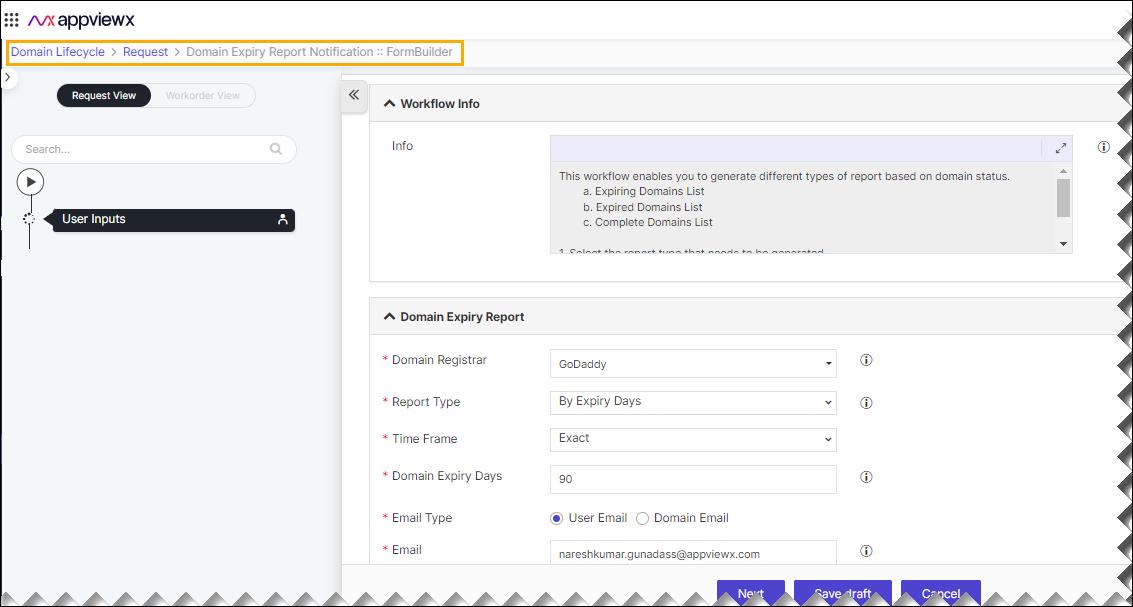
The workflow execution page is displayed with the workflow inputs requested at the first stage.
-
In the Domain Expiry Report section, enter or select the required field
information.
The following table describes the fields in this section:
Field Description *Domain Registrar Select the configured domain registrar account from the options available in the dropdown. *Report Type Select the type of report you want to generate. The options available are: - By Expiry Days: This generates a report listing the domains expiring within the specified number of days.
- Expired Domains: This generates a report listing all the expired domains.
- Complete Report: This generates a report listing all active and expired domains.
*Domain Expiry Days Enter the number of days to the date of expiry, for which you want to generate a report. For example: If you enter the value 10, the report generated will display a list of domains expiring 10 days before the date of expiry. Note: This field is displayed only when you select the option By Expiry Days in the Report Type field.*Email Enter the email address of the user to whom the report will be sent. Note: You can enter multiple email addresses as comma-separated values.*: Mandatory fields -
Click Next.
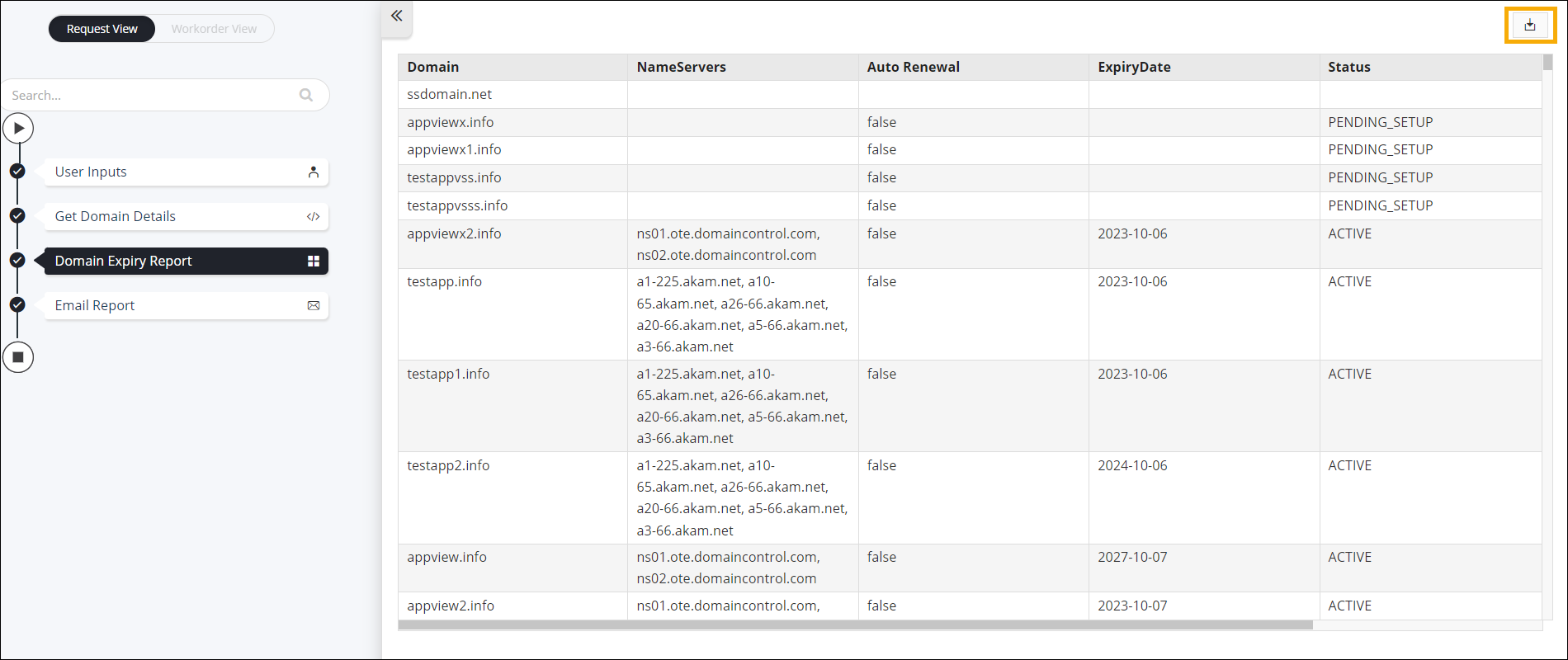
The Domain Expiry Report is generated. You can download it by clicking
 from the top right corner of the screen.