
Dashboard Functionalities
Saving Dashboard
The dashboard allows you to save the changes when you drag and drop the widgets to organize them in the dashboard, complete the following steps to save the changes.
-
Go to Menu > FIREWALL+ > DASHBOARD > Insights.
The firewall summary dashboard is displayed.
-
After making necessary changes in the dashboard, click the
 (Save dashboard) button in
the Command bar.
(Save dashboard) button in
the Command bar.A pop-up message appears at the top of the dashboard, "Dashboard saved successfully."
Downloading Dashboard
To download a dashboard,
-
Go to Menu > FIREWALL+ > DASHBOARD > Insights.
The firewall summary dashboard is displayed.
-
Click the
 (Download as PDF) button in
the Command bar at the top of the screen. The Import screen appears.
(Download as PDF) button in
the Command bar at the top of the screen. The Import screen appears.A pop-up message appears at the top of the dashboard, "Dashboard saved successfully."
Schedule and Email Reports
Based on your permissions, you can schedule and share a dashboard via e-mail. To share scheduled dashboard via email, do the following steps:
-
Go to Menu > FIREWALL+ > DASHBOARD > Insights.
The firewall summary dashboard is displayed.
Click the
 (Schedule and Email Reports)
icon.
(Schedule and Email Reports)
icon.The Schedule Reports window is displayed.
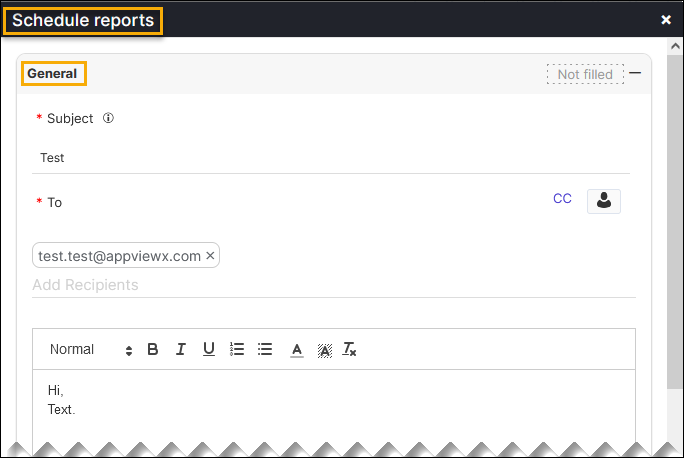
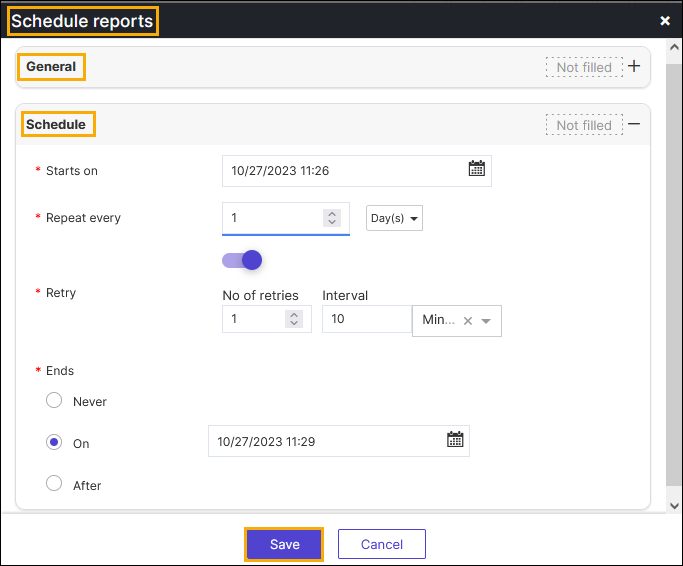
Enter the required details in the General and Schedule section in the Schedule reports page.
Aligning Dashboard
Based on your permissions, you can align a dashboard. To align the dashboard, do the following steps:
-
Go to Menu > FIREWALL+ > DASHBOARD > Insights.
The firewall summary dashboard is displayed.
- Click the
 (Align) button.
 - Make sure that the dashboard widgets are aligned in the right.
Refreshing Dashboard
Based on your permissions, you can align a dashboard. To align the dashboard, do the following steps:
-
Go to Menu > FIREWALL+ > DASHBOARD > Insights.
The firewall summary dashboard is displayed.
- Click the
 (Refresh) button.
 -
Make sure that the dashboard widgets are refreshed.
Note: You can also refresh individual widgets, using the refresh button.
