
Adding or Deleting Regex Patterns
Regex stands for regular expression; it is a string used to define filters. The string can contain a part of the device name or a key scan instance. These expressions are stored in the registry.
With Regex (Regular Expression) support, you can dynamically map user groups to infra access groups and key groups within the SSH+ module. This feature allows for the automatic mapping of newly created infra access groups and key groups that match specified Regex patterns, thus streamlining the process and reducing manual overhead.
To add or delete Regex patterns:
-
Go to
 (Menu) icon > Platform > Identity > Resource.
- Click a resource name.
- Click Access Control tab and select SSH Infra Access Groups or SSH Key Groups from the list.
-
Type a regex pattern in the Search box and click Add as
regex.
Examples of regex pattern include:
- .*<text>
- <text>.*
- <text>.*<text>
- .*
A message that the Regex pattern is successfully added for admin appears. Based on the matched regex, permission is automatically added to that resource. The newly added regex appears under the Regex column on the RHS of the page.
-
To individually delete a regex pattern, select the regex pattern from the
Regex column and click X against the name. To delete all regex
patterns, click
 (Delete) icon. A confirmation message appears as
shown.
(Delete) icon. A confirmation message appears as
shown. 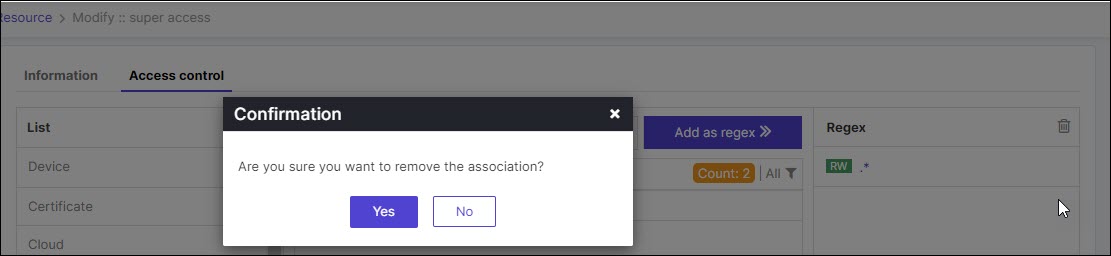 Click Yes and a message that it is successfully deleted from the matching groups appears.
