
Restore and Rollback a Device Using External Storage
Restore the configuration of the ADC device from current config to a preferred config using the configuration stored in the external storage. AppViewX enables to compare the configuration before proceeding with the restoration. During a restore, AppViewX will take a backup of the current configuration that is to be used during rollback.
On proceeding with restore, a Work order will be generated in AppViewX to track progress. On a successful restore, required configurations will be updated in the device. In case of failure, an automatic rollback will be initiated by AppViewX.
For RSeries host device restore, see the RSeries Device Restore workflow.
To restore a device:
-
Go to Menu >
ADC+ > CONFIG
MANAGEMENT > Restore Configuration.
The Restore tab opens.
- Select the Restore Type: Device.
- Select a Backup Location: External.
- Enter the Device name.
- In the date range field that appears below the Select backup to restore field, click the date you want to restore the device.
- Click Download of the selected date to download the backup file from the external storage.
-
Leave the default value in the Restore to
field.
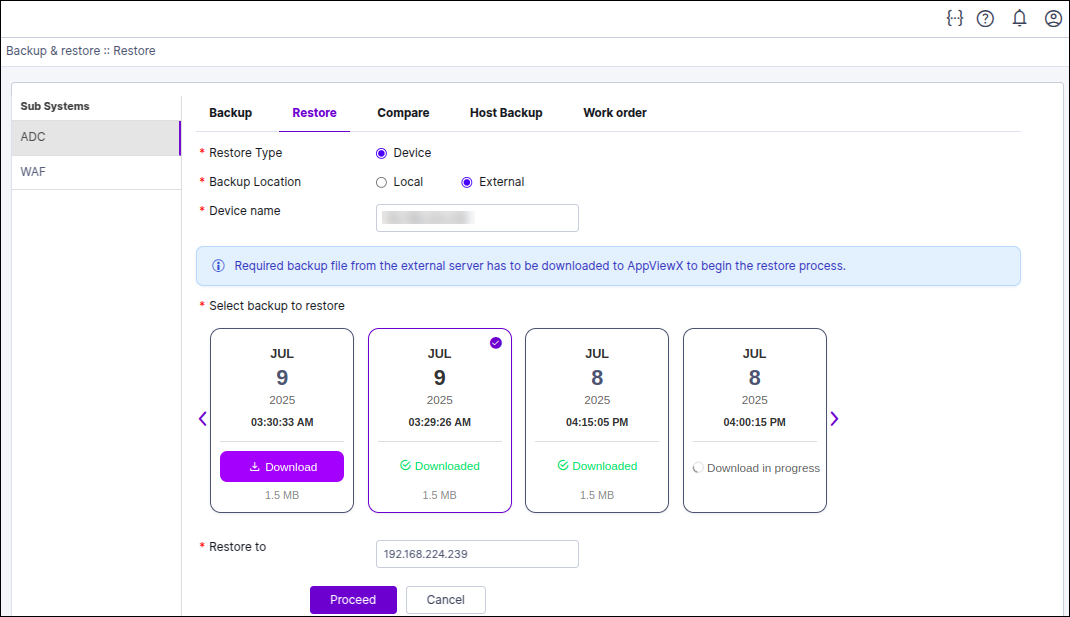
- Click Proceed.
The screen refreshes and displays a Configuration in the latest archive field, which should show the backup you selected. The table below shows all of the files contained in the backup and displays yellow circles beside each file that has been modified since the backup was taken and red circles beside each file that has been removed since the backup date.
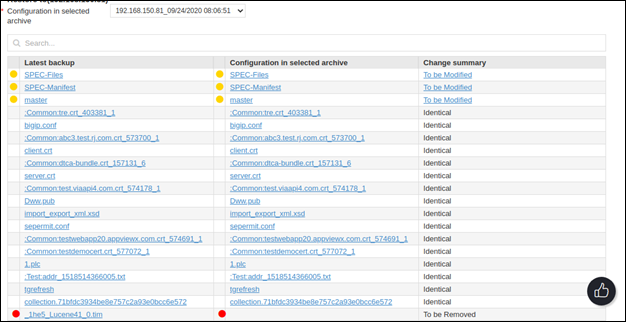
- At the bottom of the screen, enter a reason for restoring to the backup.
- Click Restore.
- Validate the changes against the latest backup and the configuration that is going to be restored. Enter a reason for restore and proceed.
- AppViewX will proceed with restoring the entire configuration file or the particular configuration of the objects in a step-by-step manner.
- A Work Order ID will be generated to track the progress at anytime. (Track the IDs in the Work order tab)
- During restoration, if AppViewX identifies any issues, an automatic configuration Rollback will be triggered, which can be tracked in the work order.
- A manual Rollback can also be initiated on a need basis.
