Issue in device import
- Log in to AppViewX.
- Click Menu > ASSET MANAGEMENT > Device Inventory.
-
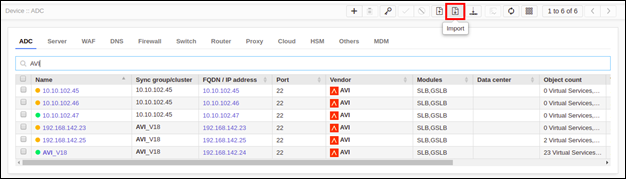
To navigate to the ADC Device Import page, click Import.
-
Select a file having the extension as
xlsorxlsx.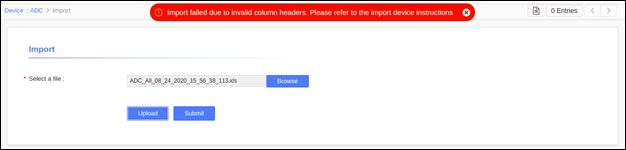
-
Click Upload.
Error Message Possible Cause Possible Solution Import failed due to invalid column headers. Please refer to the import device instructions. Import sheet has unsupported column headers. Valid column headers are: device name, associated primary, sync group/cluster, ip address/fqdn, vendor, modules, data center, credential type, username, password, credential name, AppViewX group sync, enable password, port, vcmp guest, secondary/failover, token based authentication. Please validate the import sheet for these entries.
Refer to the sample sheet as shown above.
Exception while Validating. Import sheet contains invalid entries and it cannot be parsed. Validate entries in the import sheet. Exception while Validating. The file has been removed during import. Check if the import sheet exists. Exception while Validating. The sheet cannot be read due to insufficient permission. Check for read permission to import sheets.
-
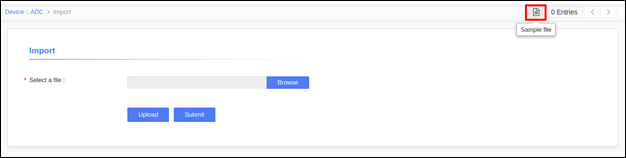
To download the sample import sheet, click the sample file icon.