
Process Failed by Invalid Dashboard
- Log in to AppViewX.
- Click Menu > TRAFFIC MANAGEMENT > Dashboards.
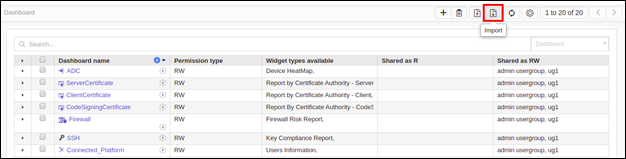
- To navigate to the dashboard import page, click the import icon.
- Select the .zip file to import.
- Click Upload.
-
Select the dashboard(s) and click Submit.
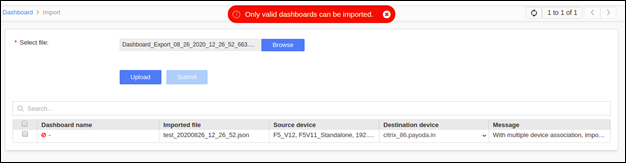
Error Message Possible Cause Possible Solution Process Failed by Invalid Dashboard. During dashboard import, the imported file has invalid entries and the user submitted the file in spite of the warning. Navigate to 'Dashboard' -> click on 'import' icon -> under 'select file', click on 'browse' icon -> select file and click 'upload' button -> the dashboard details parsed should display a green symbol indicating valid import entries -> then click 'submit' button.
