
Compare Multiple Configurations of an Object
Compare the object-level configuration of load balancer devices using previous backups or the latest configuration in AppViewX. Ensure a particular object (Say iRule) config is compliant across all the devices in a business unit. You can also track the exact configuration changes on your application by comparing them against all the recent archives.
To compare multiple configurations of an object:
-
Go to Menu >
ADC+ > CONFIG
MANAGEMENT > Compare Configuration.
The Compare tab opens.
- Select the vendor whose objects you want to compare.
- Select the object type you want to compare. The possible object types are WideIp, GTM Pool, GTM Server, GTM Monitor, GTM iRule, VirtualServer, LTM Pool, LTM Monitor, Profile, LTM iRule, LTM iRule Class, LTM Policy, LTM Persistence, Traffic Record, Traffic Region.
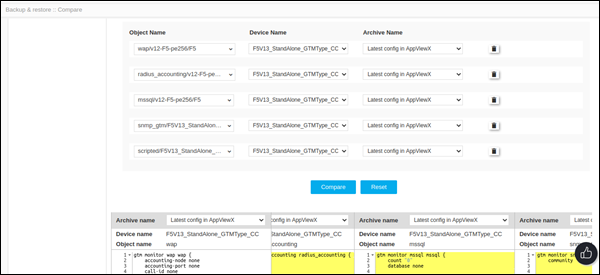
- Click Object Name dropdown list and select the name of the object whose configurations you want to compare.
- In the List of Devices field that appears, click the first Device Name dropdown list and select the first device you want to use in the comparison.
- If you want to compare configurations of the same device over time, choose the device you selected in Step 8.
- In the Archive Name field, select the first configuration you want to use in the comparison.
- In the second Device Name dropdown list, select the second device you want to use in the comparison.
- In the second Archive Name field, select the configuration you want to compare the first configuration to.
-
Click the
 Add button to add
more configurations of an object.
Add button to add
more configurations of an object.
-
Click Compare.
-
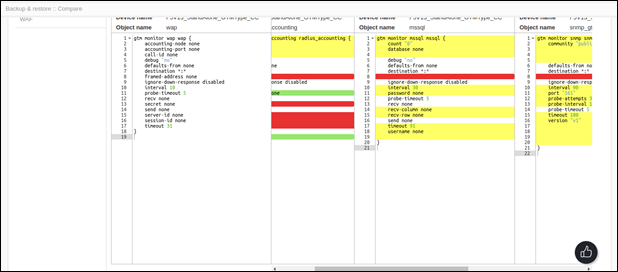
The screen refreshes and displays the two archived configurations side-by-side.
- A maximum of five archives can be compared.
-
