
Device addition in Unresolved/Failed State
The following recommended solutions are very common to all ADC vendors when device addition status moves to unresolved or Failed state. Vendor Specific issues and it’s recommendations are given below.
- Log in to AppViewX.
- Go to Menu > ASSET MANAGEMENT > Device Inventory and search for the device
that was added.

-
Click on the status of that particular device.
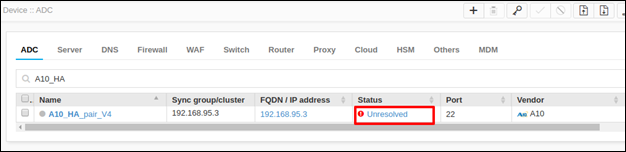
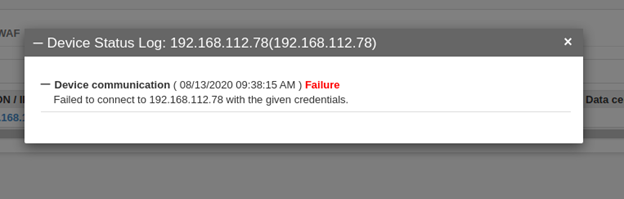
Error Message Possible Cause Possible Solution Failed to connect to <deviceIp> with given credentials. Password of the device added might be wrong. Click on the device name in the Inventory Page. Update the correct password and click Save.
Problem in checking shell access during terminal access verification. This user might not have shell access permission in the device. Check for shell access from AppViewX to the device with the same username/password used to add the device in AppViewX. Modules - <Module names> not supported for version <version> by AppViewX. Version might not be supported in AppViewX Check for this particular version to be supported in the FSM document. Else contact Support team. DeviceType does not match with the Provisioned Modules : <Module name> There might be a mismatch in modules enabled in the device and the modules selected in AppViewX. Cross check for which modules are selected in AppViewX for this particular device and those modules are enabled in the device or not. If there is a mismatch, select the module appropriately and save the device. Else contact Support team. Error in parsing <Module names> <version> configuration files Some error would have occurred during parsing in the code logic. Contact Support team.
