
Licenses for SaaS 
Accessing the License Page
| New Menu | Old Menu |
|---|---|
| In the Platform module, from the
navigation pane on the left, under SYSTEM ADMINISTRATION,
select License. The Settings :: License page is displayed with the License tab open by default. |
|
| For more information on how to switch between menus, click here. | |
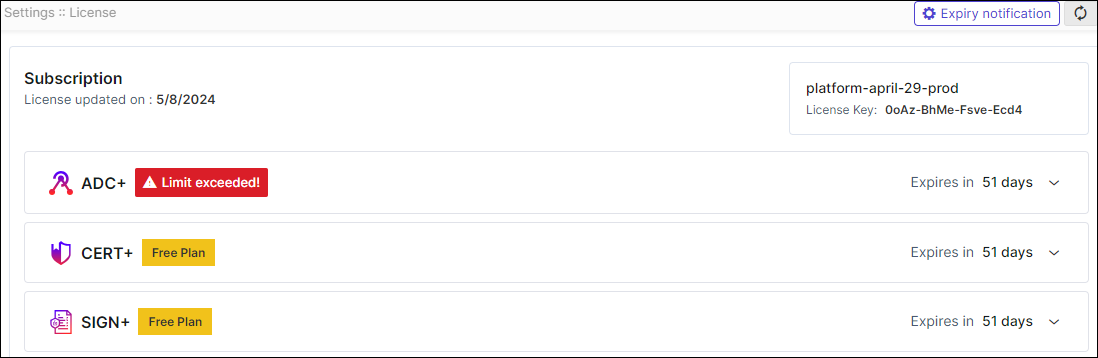
| License Detail | Description |
|---|---|
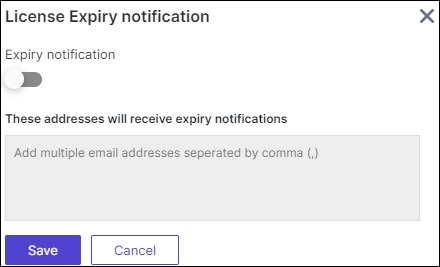
| Expiry notification | On the top right corner of the screen. Click
Expiry notification to enable the
expiry notification by including email addresses to receive
license expiration notifications from AppViewX.
The following license expiry notifications are
sent to the email address:
|
| Refresh | Click  (Refresh) icon to update the license details.
 |
| Subscription | This includes the details of license of AppViewX products subscribed by the user. |
| License updated on | Displays the date on which the license was last updated. |
| Account Name | Displays the associated account name. |
| License Key | Displays the License key details of the user.
The key is generated by the customer perspective. Using which
License Key of "16 digit Alphanumeric" value is generated by the
sales team. Only License Key generated with installation key can
be applied in the respective instance of the product. Note: Consider only the license key which is
provided by the sales team. |
| Product Name | This includes the details of subscribed licenses
of all AppViewX products. Note: Products
under the Free Plan are indicated with a Free
Plan flag next to the product name. |
| Expires in | Displays the remaining days until the respective products expire. |
| ADC | |
| Nodes | All the ADC devices (Independent devices, Controllers, Nodes within controllers) that are onboarded in the inventory. |
| Objects | All the ADC Applications (Unique GTM WideIPs, LTM VIPs) discovered from the onboarded ADC devices. |
| CLM | |
| Managed Device Certificates Instances | Managed Device Certificates Instances includes all certificates (Client, Code Signing, and Device) excluding Server and OTHERS types, from the inventory in the "Managed" state. |
| Managed Server Certificates Instances | Managed Server Certificates Instances include only server certificates from the inventory in the "Managed" state. |
| Managed Certificates Instances | Managed Certificate instance includes
all certificates (Server, Client, Code Signing, and others)
present in the certificate inventory in the "Managed" state.
Note: Certificates issued by AppViewX Native PKI under the new Active PKI licensing model are tagged as "Managed" in the CLM inventory and are covered under your PKI license. They do not consume your CLM Managed Certificates quota. |
| Monitored Certificates Instances | Monitored Certificate Instances include all certificates (Server, Client, Code Signing, and others) present in the certificate inventory in the "Monitored" state. |
| DDI | |
| Managed Domains | Each DDI license subscription allows the user a number of managed domains that can be used. The number displays DDI managed domains currently in use. |
| KUBE | |
| Managed Kube Certificates | Starting v2026.2.0.0, AppViewX switches to a
certificate-based licensing model for Kubernetes (which means
you will see this metric only if you are a new customer
onboarded to v2026.2.0.0 or an existing customer who has
upgraded their license to v2026.2.0.0). This number indicates the total active Kubernetes certificates (certificates that are issued, used, and managed inside a Kubernetes environment) being managed in AppViewX. The count
includes: Counting logic for the certificate-based
licensing model:
|
| Managed Clusters | For all versions prior to v2026.2.0.0, AppViewX
uses a node-based and cluster-based licensing model for KUBE.
So, until you upgrade to v2026.2.0.0, your KUBE license is
measured using the Managed Clusters and Managed
Nodes metrics. Managed Clusters indicates the number of distinct Kubernetes clusters onboarded and managed in AppViewX. A cluster is a complete Kubernetes environment that is made up of one or more nodes. |
| Managed Nodes | For all versions prior to v2026.2.0.0, AppViewX
uses a node-based and cluster-based licensing model for KUBE.
So, until you upgrade to v2026.2.0.0, your KUBE license is
measured using the Managed Clusters and Managed
Nodes metrics. Managed Nodes indicates the total number of nodes being managed across all clusters in AppViewX. A node is a physical/virtual machine running in a Kubernetes cluster. |
| PKI | |
| Active Certificates | Starting with the new licensing model, AppViewX
switches to an active-based licensing model for PKI (available
for net-new tenants and existing tenants upon license renewal).
This metric displays the total number of active end-entity certificates issued by AppViewX Native PKI.S Counting rules:
|
| Active CA(s) | Displays the total number of active Certificate
Authorities created and managed in AppViewX PKI (includes
breakdown of Active Root CAs and Active Intermediate CAs).
Counting rules:
Note on PKI Settings: For tenants operating on the new Active licensing model, the Select Certificate Authorities option (under PKI → Settings and CLM → Certificate Authorities) is automatically hidden, as all native CA-issued certificates are managed and metered directly under PKI. |
| Certificates Issued |
Certificates issued are the total number of certificates which includes the number of certificates issued from all Certificate Authorities(CAs).
|
| Total CA(s) | Total CA is Number of CAs created from AppViewX. Each PKI license subscription allows the user a number of total CAs using this license. This is the number of total CAs used. |
| SIGN | |
| Signature Count | Total count of signing requests executed using the signing policy. |
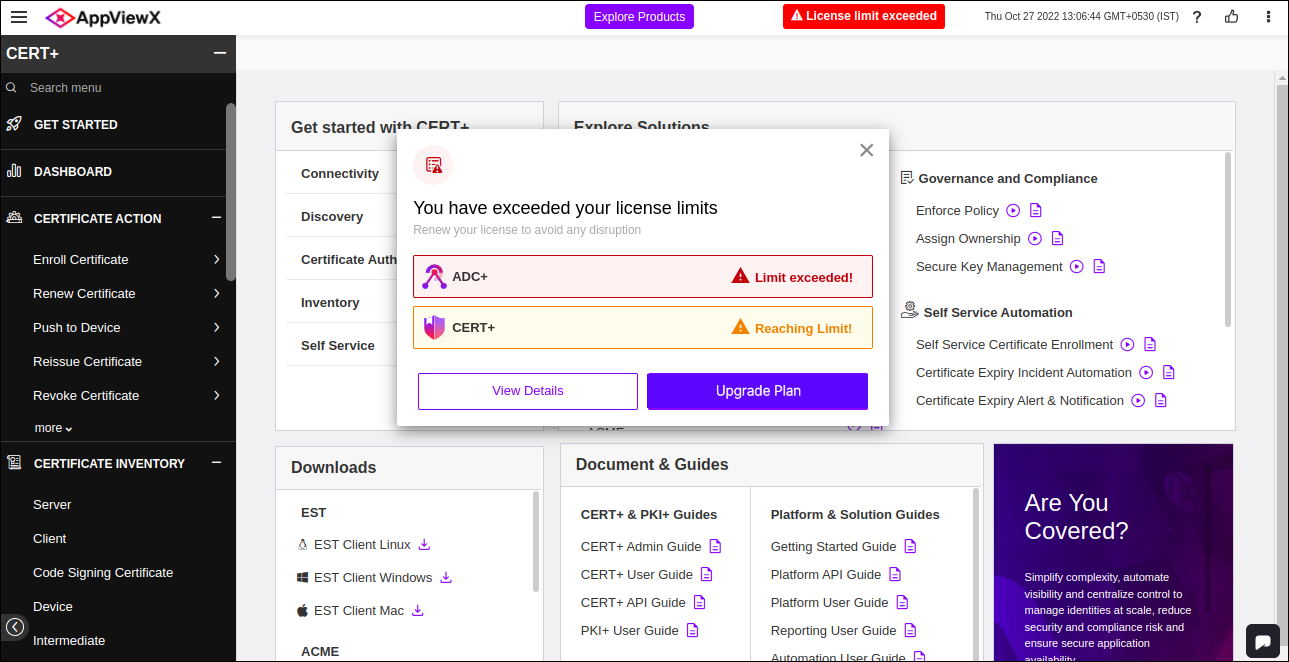
License Alerts
 Reaching Limit!
 If the usage reaches 90% of the threshold limit, then “Reaching Limit!” alert will be displayed.
 Limit exceeded!
If the usage exceeds the threshold limit, then “Limit exceeded!” alert will be displayed.
- You will see a header alert message while logging In, if the license
limit is exceeded.
Upgrading Licenses for SaaS
To upgrade a license:
- On the Settings :: License page, to upgrade a license, click on the Product Name you would like Upgrade Plan.
-
Click Upgrade Plan.
Upon clicking Upgrade Plan, AppViewX generates the SFDC ticket, ensuring that the sales team is promptly notified and gets in touch with you shortly.You will be redirected to the AppViewX Upgrade page to select a time slot to contact with the sales team.
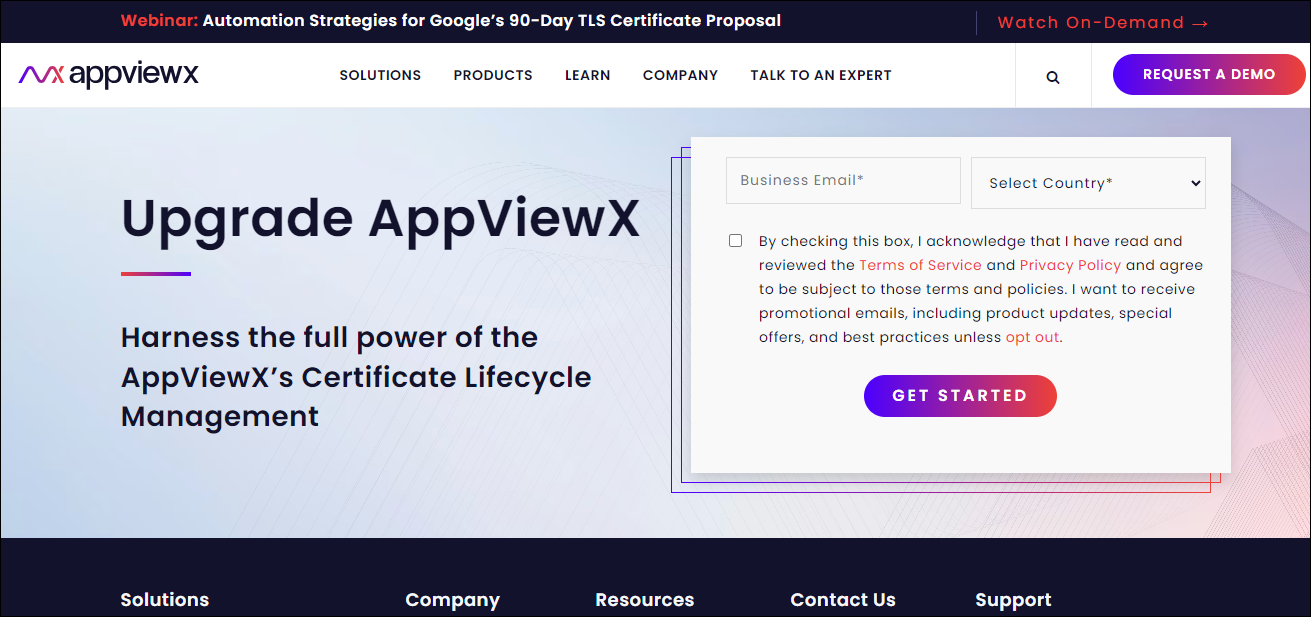
- Enter the Business Email* and Select Country* from the dropdown.
- Select the checkbox to acknowledge the Terms of Service and Privacy Policy.
-
Click GET STARTED.
What time works best for a quick call? Popup is displayed.
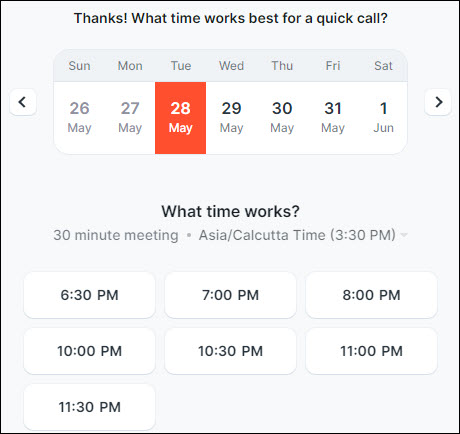
- Select a feasible date and time for the sales team to connect.
-
A meeting invite will be sent to your registered email address.
The salesperson details and invite information will be displayed on the screen.
