
Microsoft Intune (MDM)
Prerequisites
- To obtain the required installation .zip files, reach out to the AppViewX team.
- A Microsoft Intune administrator account with permissions to create and assign Win32 applications.
- Each managed endpoint must have outbound HTTPS access to the Agent Identity Security Platform (https://ais.appvx.com). Ensure that VPN, firewall, proxy, and TLS inspection policies permit this connection.
Installation steps
Step 1: Generate a bootstrap token in AppViewX Agent Identity Security
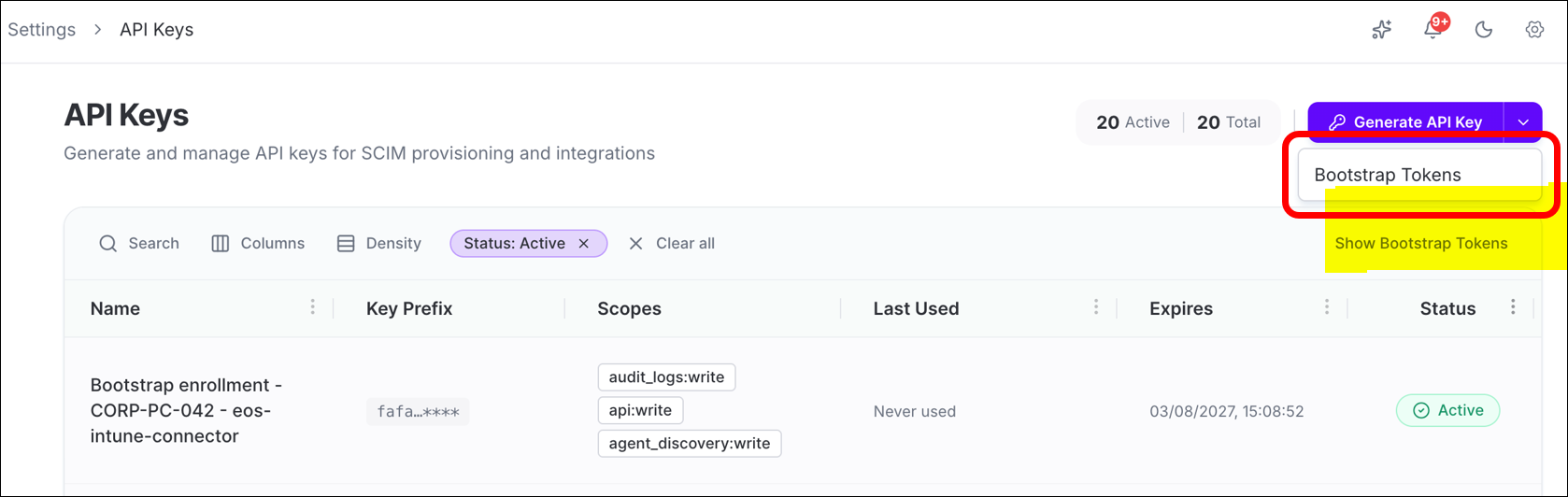
- Go to the Settings page in the Agent Identity Security Platform.
- Navigate to the API Keys section.
-
Select Generate Bootstrap Token.
-
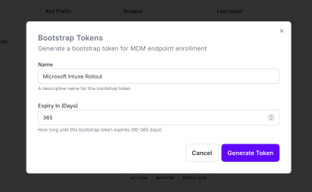
Create a bootstrap token.
-
Copy and securely store the generated bootstrap token.
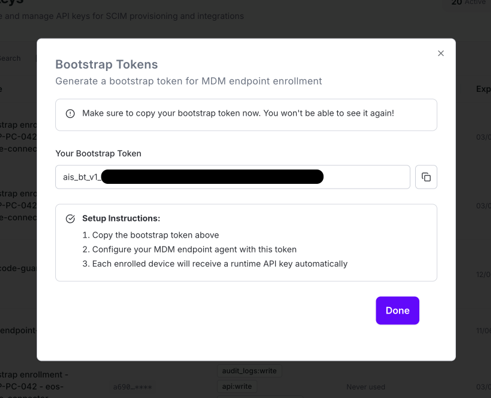 Important: You will need this token when configuring the installation command in Step 2.2. Store it securely do not embed it in shared scripts or source control.
Step 2: Create a Win32 application in Microsoft Intune
- Sign in to your Microsoft Intune account.
- In the left navigation panel, select Apps.
- Select Windows.
- Select + Create.
- Under Platform, select Windows.
- Under App Type, select Windows app (Win32).
- Select Select app package file.
- Upload the ais-shadow-ai-agent-detection-install.intunewin package.
- Select OK.
- Enter the application name, description, publisher, and version.
- Select Next and complete the upload process.
Continue with the sub-steps below to complete the application configuration:
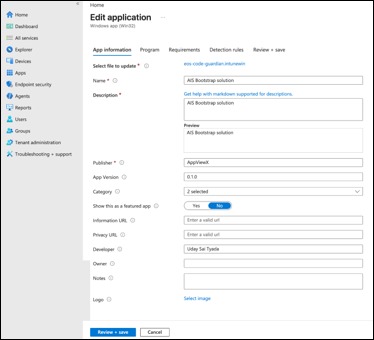
Step 2.1: Enter app information
| Field | Value |
|---|---|
| Name | Enter a descriptive name for the application, for example, Agent Identity Security Shadow AI Agent Detection. |
| Description | Detects and reports shadow AI agent activity on Windows endpoints to the AppViewX Agent Identity Security (Agent Identity Security) platform. |
| Publisher | AppViewX |
| App Version | Enter the version number of the package being deployed, for example, 0.1.0. |
| Category | Select one or more categories that reflect the application type, for example, Computer Management. |
| Developer | Enter the responsible team or administrator name. |
Step 2.2: Configure program details
- On the Program page, set Installer type to Command line.
-
In the Install command field, enter the command that
matches your network configuration.
Standard installation for endpoint machines with standard network access:
powershell.exe -NoProfile -NonInteractive -ExecutionPolicy Bypass -File ais-shadow-ai-agent-detection-install.ps1 -TenantSubdomain "prodtest" -BootstrapToken "<YOUR_BOOTSTRAP_TOKEN>" -AllowDirectFallbackExample:
powershell.exe -NoProfile -NonInteractive -ExecutionPolicy Bypass -File ais-shadow-ai-agent-detection-install.ps1 -TenantSubdomain "acme" -BootstrapToken "ais_bt_v1_xxxxxxxxxxxxxxxx_xxxxxxxxxxxxx" -AllowDirectFallbackProxy-enabled installation for endpoint machines that require an enterprise proxy for network access:
powershell.exe -NoProfile -NonInteractive -ExecutionPolicy Bypass -File ais-shadow-ai-agent-detection-install.ps1 -TenantSubdomain "prodtest" -BootstrapToken "<YOUR_BOOTSTRAP_TOKEN>" -ProxyMode "CustomConfig" -ProxyUrl "http://PROXY_FQDN:PORT" -DisableDirectFallbackExample:
powershell.exe -NoProfile -NonInteractive -ExecutionPolicy Bypass -File ais-shadow-ai-agent-detection-install.ps1 -TenantSubdomain "prodtest" -BootstrapToken "ais_bt_v1_xxxxxxxxxxxxxxxx_xxxxxxxxxxxxx" -ProxyMode "CustomConfig" -ProxyUrl "http://proxy.example.com:8080" -DisableDirectFallbackThe following optional parameters control detection behavior:
Parameter Default Purpose -ScanIntervalSeconds <n>15 Seconds between detection scans. Lower values provide faster detection but increase API calls; higher values reduce load. -DnsPollIntervalSeconds <n>2 Seconds between background DNS-event checks for short-lived custom-agent activity. Lower values catch shorter-lived signals more reliably; higher values reduce overhead. -DetectionHistoryWindowSeconds <n>120 Detection history window in seconds. Each portal history row covers at most this span. Allowed range: 60–3600. Distinct signals are kept; only exact repeats inside the window collapse. In-memory event-log buffers stay capped so a longer window cannot exhaust endpoint memory. -
In the Uninstall command field, enter:
powershell.exe -NoProfile -ExecutionPolicy Bypass -File ais-shadow-ai-agent-detection-uninstall.ps1 -
Set the remaining program options as follows:
Setting Value Installation time required (mins) 5 Allow available uninstall Yes Install behavior System Device restart behavior No specific action Return codes Retain the default Intune return codes: 0 = Success, 1 = Failed, 3010 = Soft reboot, 1641 = Hard reboot, 1618 = Retry. 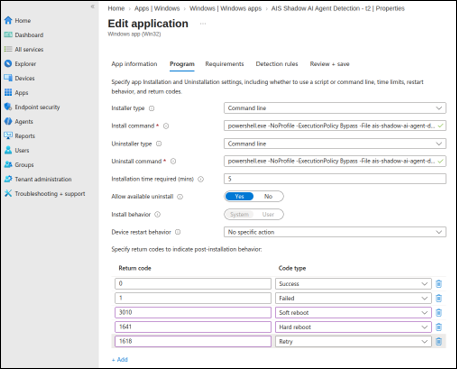
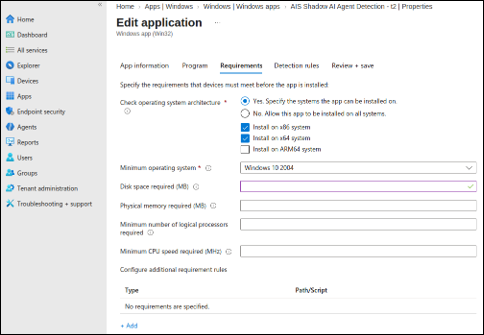
Step 2.3: Configure requirements
| Setting | Value |
|---|---|
| Operating system architecture | Select Yes Specify the systems the app can be installed on, then select both 32-bit and 64-bit. |
| Minimum operating system | Select the minimum supported Windows version, for example, Windows 10 2004 or later. |
Step 2.4: Configure detection rules
- On the Detection rules page, set Rules format to Use a custom detection script.
- Under Upload detection script, upload ais-shadow-ai-agent-detection-detect.ps1.
-
Set the remaining detection options as follows:
Setting Value Run script as 32-bit process on 64-bit clients No Enforce script signature check and run script silently No (unless your organisational policy requires script signing). Note: The detection script checks for the presence of the installed marker file and registry configuration underHKLM:\SOFTWARE\AppViewX\Agent Identity Security. Intune uses the script exit code to determine whether the application is installed.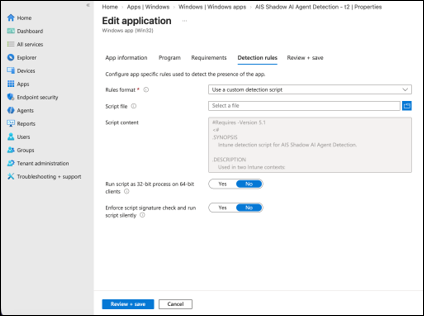
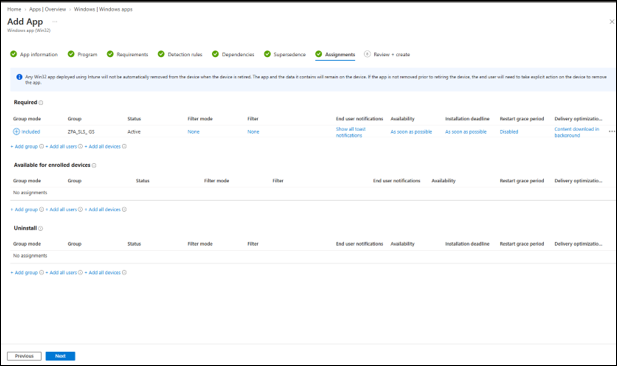
Step 2.5: Configure assignments
- On the Assignments page, under Required, select + Add group.
- Add the required device group for deployment.
-
After confirming the assignments, select Next to continue
to the review stage.
Step 2.6: Review and save
-
On the Review + save page, verify the following before
saving:
Setting What to confirm Install command The PowerShell command is complete and contains the correct tenant-specific values. Uninstall command ais-shadow-ai-agent-detection-uninstall.ps1 is present. Requirements The operating system architecture and minimum version are correct. Detection script ais-shadow-ai-agent-detection-detect.ps1 is uploaded. Install behavior Set to System and no device restart is required. Tenant-specific values TenantSubdomainandBootstrapTokenhave been replaced with the correct production values. - Select Save to create the application.
After the application is created, complete the following steps before broad deployment:
- Assign the application to a test device group.
- Verify successful installation by checking the Intune device install status.
- Verify that the detection status confirms the application is detected as installed.
- Validate uninstall by removing the assignment and confirming clean removal.
- Confirm agent registration by verifying that the endpoint appears under in the Agent Identity Security Platform after the scheduled task starts.
Step 3: Verify deployment
-
Verify the installation status in Microsoft Intune.
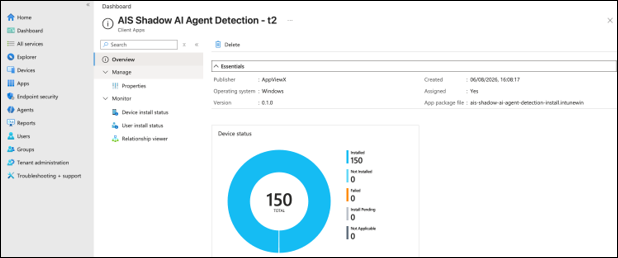
In Microsoft Intune, navigate to Apps and select the application to view the device installation status. Confirm that the test device shows Installed.
-
Verify Shadow AI discovery in the Agent Identity Security Platform.
In the Agent Identity Security Platform, navigate to and confirm that the test endpoint hostname appears. This confirms successful enrolment.
-
Verify detection activity in the Agent Identity Security Platform.
In the Agent Identity Security Platform, confirm that shadow AI activity detected by the agent is visible within the first scan cycle (typically within 30 seconds of the scheduled task starting). Also confirm that Device install status in Intune shows Installed for the test device.
