
AppViewX PKIaaS Native CA
AppViewX PKIaaS Native is a Certificate Authority (CA) available within the AppViewX CLM platform. It enables organizations to issue, manage, and automate the lifecycle of digital certificates using an AppViewX PKIaaS (PKI as a Service) deployment. The CA settings support both internal and external configurations, allowing flexibility for enterprise PKI architectures.
AppViewX CLM supports configuring multiple external CA accounts under the AppViewX PKIaaS Native CA type. This enhancement allows organizations to connect CLM to multiple external PKIaaS environments simultaneously, each serving different certificate purposes such as server authentication, client authentication, or code signing.
Prerequisites
Before configuring an AppViewX PKIaaS Native CA account, ensure the following information is available:
- Base URL of the AppViewX PKIaaS Native instance. (Required when CA Type is External)
- Valid credentials to access the AppViewX PKIaaS Native instance. (Required when CA Type is External)
- A properly configured data center (CA agent) in the AppViewX CLM instance. (Required when CA Type is External)
- Administrator access to the AppViewX CLM instance.
- The AppViewX PKIaaS environment must be running release 2026.3.0 or later to display Extended Key Usage (EKU) information in certificate templates.
Managing AppViewX PKIaaS Native CA Accounts
CA Account Inventory Overview
The AppViewX PKIaaS Native CA page in CLM displays all configured CA accounts in
a table view. Each row in the table represents a configured CA account and
provides at-a-glance information along with management actions. 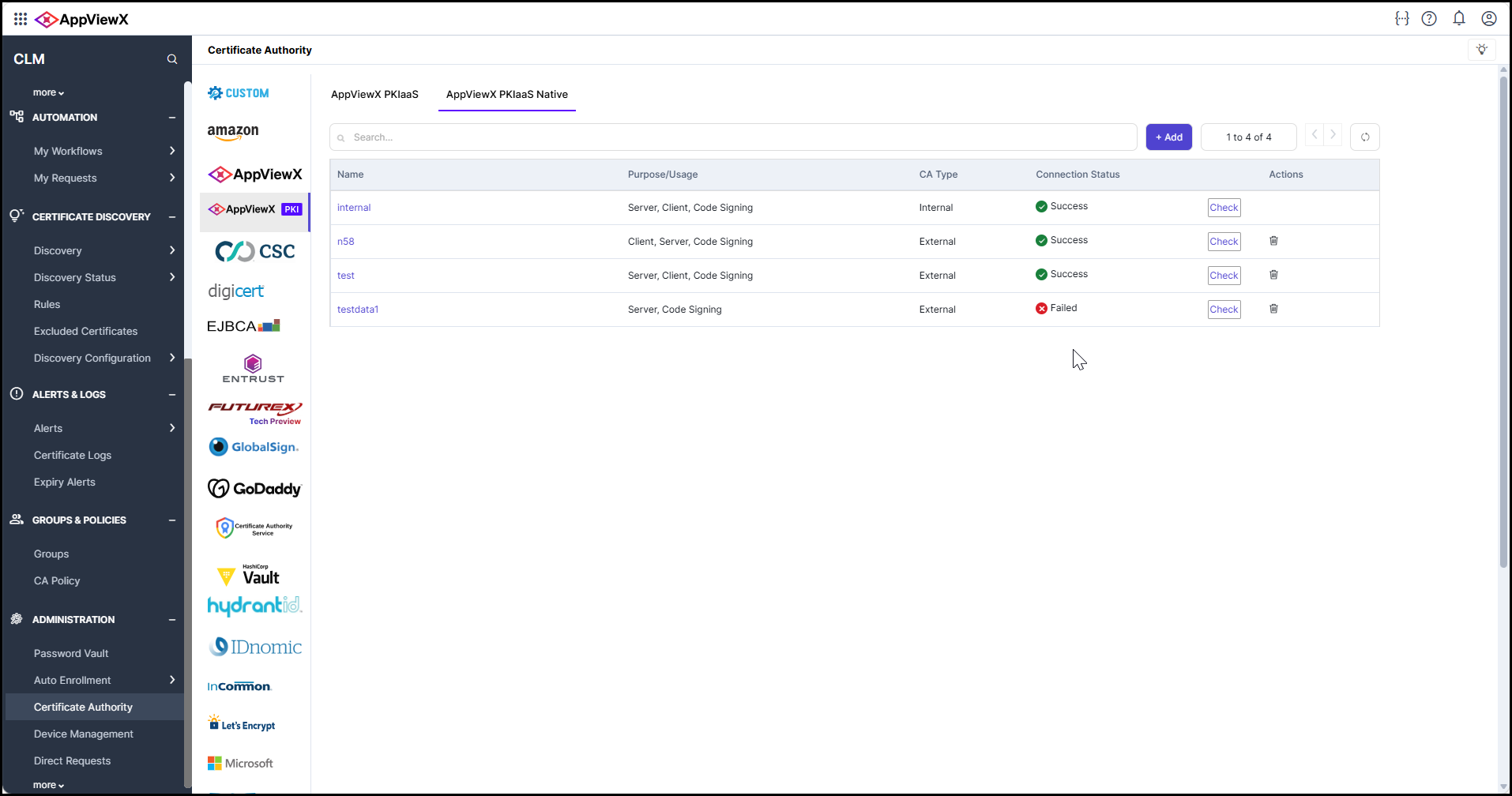
The CA account table supports the following capabilities:
- Search: Filter accounts by CA Account Name or CA Type.
- Pagination: Navigate through multiple CA account entries.
- On-demand status check: Verify the connection status of any CA account at any time.
- Delete action: Remove an external CA account from CLM.
CA Configuration Rules
The following rules govern how CA accounts can be configured in AppViewX CLM:
| # | Rule |
|---|---|
| 1 | When no CA account exists, you can configure either one Internal CA account or one External CA account as the first account. |
| 2 | After an Internal CA account is configured, no additional CA accounts can be added. The system restricts configuration to a single internal CA per CLM instance. |
| 3 | After an External CA account is configured, you can add multiple additional external CA accounts. There is no upper limit on the number of external CA accounts. |
| 4 | A configured CA account cannot be switched from Internal to External type, or from External to Internal type. The CA Type field is immutable after the account is saved. |
| 5 | Each external CA account must have a unique CA Account Name. Duplicate names are not allowed. |
| 6 | For external CA accounts, Fetch Issuers and Templates is mandatory before saving a new account. It is optional when editing an existing account. |
Adding an AppViewX PKIaaS Native CA Account
To add an AppViewX PKIaaS Native CA account:
- Go to Menu > CLM > ADMINISTRATION > Certificate Authority.
The Certificate Authority page appears.
- On the Certificate Authority page, select AppViewX PKI from the CA list on the left.
The Certificate Authority page for AppViewX PKI appears.
- Click the AppViewX PKIaaS Native tab.
- Perform one of the following:
- If no CA account has been configured, click Configure Now.
- If one or more external CA accounts are already configured, click Add.
The CA account configuration form appears.
- Enter or select the General Information for the CA account. Refer to
the General Information table below.
Table 1. General Information Field Description *CA Type Specifies whether the AppViewX PKIaaS Certificate Authority is internal or external to the current AppViewX environment. Select one of the following options: - Internal: Choose Internal when the PKI Certificate Authority is provisioned and operated within the same AppViewX infrastructure. This option is used when AppViewX PKI+ is deployed and managed in the same tenant or environment as CLM. Internal CAs are typically used for issuing certificates to internal systems, services, and users within the organization's own PKI infrastructure.
- External: Choose External to connect to an AppViewX PKIaaS Native Certificate Authority that is deployed and managed in a separate tenant or environment. This option allows CLM to communicate with a remote AppViewX PKI+ instance, enabling cross-environment or multi-tenant PKI integrations where the CA operates independently from the current AppViewX deployment.
*CA Account Name A unique identifier for the CA account configuration. This name is used to identify the account across CLM workflows including enrollment, discovery, and policy configuration. - Special characters other than period (.), hyphen (-), and underscore (_) are not allowed.
- The name must not begin with a special character.
- The name cannot be changed after the account is saved.
*Purpose Specifies the certificate use cases for which this CA account will be available in CLM enrollment workflows. This is a multi-select field. Select one or more of the following values: - Server Authentication: The CA account is available in the Server certificate inventory enrollment flow.
- Client Authentication: The CA account is available in the Client certificate inventory enrollment flow.
- Code Signing: The CA account is available in the Code Signing certificate inventory enrollment flow.
Note: A CA account is displayed only in the enrollment flows that match its configured purpose. For example, a CA account configured with Server Authentication only will not appear in the Client Authentication enrollment flow.
Note: This field is displayed only when CA Type is set to External.
*Data Center Select the data center through which CA communication is routed. The data center acts as a communication enabler (CC) that routes requests from the CLM tenant to the external PKIaaS environment in the specified region. Note: This field is displayed only when CA Type is set to External. In on-premises deployments, a single data center is typically available. In SaaS deployments, multiple region-specific data centers may be listed.
Proxy Required Enable this toggle if CA communication must be routed through a configured proxy server. When enabled, the proxy details configured in General Settings of AppViewX are applied for all CA communications. Note: To manage proxy settings, refer to Managing Proxy Settings. This field is displayed only when CA Type is set to External.
- If the CA Type is External, enter the CA Configuration details. Refer to the CA Configuration table.
- Click Fetch Issuers and Templates to retrieve the available issuers and certificate templates from the external PKIaaS environment. Refer to Fetching Issuers and Templates.
Important: Fetching issuers and templates is mandatory before saving a new external CA account. The Save button remains disabled until the fetch operation is completed successfully.
- Configure the Advanced Settings as required. Refer to the Advanced Settings table.
- In the Select Certificate Authorities section, select the issuers whose certificates you want CLM to manage. Refer to Selecting Certificate Authorities to Manage.
- Click Save.
CA Configuration
*-mandatory fields
| Field | Description |
|---|---|
| *Base URL | The base URL of the AppViewX PKIaaS Native instance. This is the endpoint used to connect to the CA.
Example: https://pkica.appviewx.com:443 Important: If you change the Base URL when editing an existing CA account, you must click Fetch Issuers and Templates again to refresh the issuer and template data from the new endpoint.
|
| *Authentication Type | Specifies how API requests to the CA are authenticated. Select one of the following options:
|
| *Username | The username used for Basic Authentication to the AppViewX PKIaaS Native CA instance.
Note: This field is displayed only when Authentication Type is set to Basic Authentication. To manage users, refer to the user management documentation.
|
| *Password | The password associated with the specified username for authenticating to the AppViewX PKIaaS Native CA instance.
Note: This field is displayed only when Authentication Type is set to Basic Authentication.
|
| *Client ID | A unique ID assigned to your application or service. It is used together with the Client Secret to obtain an access token.
Note: This field is displayed only when Authentication Type is set to Client Credentials. To manage service accounts, refer to the service account documentation.
|
| *Client Secret | A private key linked to the Client ID. It is used with the Client ID to obtain an access token.
Warning: Keep this value secure and do not share it. The Client Secret is encrypted and stored securely by CLM.
Note: This field is displayed only when Authentication Type is set to Client Credentials.
|
Fetching Issuers and Templates
The Fetch Issuers and Templates action retrieves the list of available Certificate Authorities (issuers) and certificate templates from the connected external PKIaaS environment. This information is used to populate the Select Certificate Authorities dropdown and the Certificate Templates table in the CA account configuration form.
To fetch issuers and templates:
- Complete the CA Configuration fields (Base URL, Authentication Type, and credentials).
- Click Fetch Issuers and Templates.
On a successful fetch, the following information is retrieved from the external PKIaaS environment:
- Issuers (CA Details): A list of all Certificate Authorities available in the external PKIaaS environment, including their name, type (Root CA or Subordinate CA), state, and status.
- Certificate Templates: A list of all certificate templates available in the external PKIaaS environment, along with their associated Extended Key Usages (EKUs). Templates are independent of individual issuers and can be used by any issuer to create certificates.
- Fetching issuers and templates is mandatory when creating a new external CA account. The Save button is disabled until the fetch is completed successfully.
- Fetching is optional when editing an existing CA account. You can update other fields and save without re-fetching, unless the Base URL has changed.
- You can click Fetch Issuers and Templates again at any time to refresh the data if new templates or issuers have been added to the external PKIaaS environment.
Certificate Templates Table
After a successful fetch, the Certificate Templates table is displayed below the Advanced Settings section. This table provides a read-only view of all certificate templates retrieved from the external PKIaaS environment.
| Column | Description |
|---|---|
| Template Name | The name of the certificate template as defined in the external PKIaaS environment. For example: WebServer, DomainController. |
| Extended Key Usages (EKUs) | The Extended Key Usage values associated with the template. These define the specific purposes for which certificates issued using this template can be used. For example: Server Authentication, Client Authentication, Encrypting File System. Click a template row to expand and view all associated EKUs. |
Advanced Settings
| Field | Description |
|---|---|
| Retry Required | Enable this toggle to allow AppViewX to automatically retry failed CA communication requests. When enabled, the system retries the connection in the event of a transient failure or timeout.
Note: Enabling this option displays the Retry Count and Retry Frequency fields. This setting is disabled by default. |
| *Retry Count | Specifies the maximum number of times AppViewX will attempt to retry a failed CA communication request. Enter a numeric value to define the retry limit.
Note: This field is displayed only when the Retry Required toggle is enabled. Default value: 1 |
| *Retry Frequency | Specifies the time interval (in seconds) between consecutive retry attempts for a failed CA communication request. Enter a numeric value to define the interval between retries.
Default value: 1 Note: This field is displayed only when the Retry Required toggle is enabled. |
*-Mandatory fields (when Retry Required is enabled)
Selecting Certificate Authorities to Manage
The Select Certificate Authorities section is displayed after a successful fetch of issuers and templates. It allows you to specify which of the retrieved Certificate Authorities (issuers) CLM should actively manage.
Select the Certificate Authorities from the dropdown whose certificates you want CLM to manage. The selection determines the inventory status of certificates issued by each CA:
| Status | Description |
|---|---|
| Managed | Certificates issued by selected Certificate Authorities are maintained in Managed status. CLM settings and lifecycle operations (renewal, revocation, and so on) take precedence over PKI settings for these certificates. |
| Monitored | Certificates issued by unselected Certificate Authorities are maintained in Monitored status in the CLM inventory. These certificates are tracked but not actively managed by CLM. |
Editing an AppViewX PKIaaS Native CA Account
To edit an existing AppViewX PKIaaS Native CA account:
- Go to Menu > CLM > ADMINISTRATION > Certificate Authority.
- Select AppViewX PKI from the CA list on the left.
- Click the AppViewX PKIaaS Native tab.
The CA account inventory table appears.
- Click the CA account name for the account you want to modify.
The CA account configuration form opens in edit mode.
- Update the required fields.
- If you have changed the Base URL or want to refresh the issuer and template data, click Fetch Issuers and Templates.
- Click Update to save the changes.
- The CA Account Name and CA Type fields cannot be changed after the account is saved.
- Fetching issuers and templates is optional during an edit. You can update other fields and save without re-fetching.
- If the connection check is in progress when you make changes to the form, the Check button is disabled. After you click Update, the Check button is re-enabled.
Validating the CA Connection Status
To manually verify the connection status of a configured AppViewX PKIaaS Native CA account:
- Go to Menu > CLM > ADMINISTRATION > Certificate Authority.
- Select AppViewX PKI from the CA list on the left.
- Click the AppViewX PKIaaS Native tab.
The CA account inventory table appears.
- In the Connection Status column for the relevant CA account, click Check.
- If the connection check fails repeatedly, verify that the Base URL is reachable from the configured data center and that the credentials provided are valid. Ensure that no firewall rules are blocking communication between the AppViewX CA agent and the PKIaaS Native endpoint.
- If the connection check fails, the system retains the last successful CA account configuration.
- If the connection status shows a failure, click the status indicator to view the detailed failure reason.
Understanding Connection Status Values
The Connection Status field in the CA account inventory provides real-time information about the health of CA communication. The following table describes the possible status values:
| Status | Description |
|---|---|
| In Progress | The CA account configuration has been saved and the initial connection verification is underway. |
| Success | The CA account is successfully configured and communication with the AppViewX PKIaaS Native CA has been established. |
| Failed | The connection to the CA could not be established. Click the status indicator to view the failure reason. Verify the Base URL, credentials, and network connectivity, then click Check to retry the validation. |
Deleting an AppViewX PKIaaS Native CA Account
You can delete an external AppViewX PKIaaS Native CA account that is no longer required. Deleting a CA account removes it from CLM and cleans up all associated metadata.
To delete an AppViewX PKIaaS Native CA account:
- Go to Menu > CLM > ADMINISTRATION > Certificate Authority.
- Select AppViewX PKI from the CA list on the left.
- Click the AppViewX PKIaaS Native tab.
The CA account inventory table appears.
- In the row for the CA account you want to delete, click the Delete icon.
- A confirmation dialog appears. Review the warning message and click Confirm to proceed with the deletion.
When a CA account is deleted, the following cleanup actions are performed automatically:
- All metadata associated with the CA account, including issuer information and certificate templates, is removed from CLM.
- The default CA policy is updated to reflect the remaining configured CA accounts.
- The deleted CA account no longer appears in certificate enrollment flows, the CA Authority page, or discovery configurations.
- Internal CA accounts cannot be deleted. The delete action is restricted to external CA accounts only.
- A CA account that has intermediate CA assignments cannot be deleted. Remove the intermediate CA assignments before attempting to delete the account.
- You must have the CERT_SETTINGS_MODIFY permission to delete a CA account.
Certificate Discovery with Multiple CA Accounts
When multiple external CA accounts are configured, all configured accounts are available for selection during certificate discovery. The discovery mode determines how CA accounts can be selected:
| Discovery Mode | CA Account Selection Behavior |
|---|---|
| Aggressive | Allows selection of multiple configured CA accounts. All selected CA accounts are included in the discovery scan. |
| Optimized | Restricts selection to a single configured CA account. This mode uses additional parameters such as certificate template, issuer name, and certificate status that are specific to a single CA configuration and cannot be applied across multiple CAs simultaneously. |
Purpose-Based Certificate Enrollment
Each external CA account is configured with one or more Purpose values that determine which certificate inventory types the CA account is available for during enrollment. This allows organizations to direct specific certificate types to the appropriate CA accounts.
| Purpose | Enrollment Availability |
|---|---|
| Server Authentication | The CA account is available in the Server certificate inventory enrollment flow. |
| Client Authentication | The CA account is available in the Client certificate inventory enrollment flow. |
| Code Signing | The CA account is available in the Code Signing certificate inventory enrollment flow. |
For example, if you have two external CA accounts configured as follows:
- CA-Account-A with Purpose: Server Authentication
- CA-Account-B with Purpose: Client Authentication, Code Signing
Then during enrollment:
- Only CA-Account-A appears in the Server certificate enrollment flow.
- Only CA-Account-B appears in the Client Authentication and Code Signing enrollment flows.
