
DCV Management Inventory and Actions
The DCV Management inventory provides a centralised view of all domains registered for Domain Control Validation across the Certificate Authorities managed in AppViewX. From this inventory, you can monitor validation status, trigger or schedule revalidation, update validation methods, and manage domain lifecycle in bulk.
-
Go to
 (Menu) > CERT+ >
ADMINISTRATION > DCV
Management.
The DCV Management inventory is displayed.
(Menu) > CERT+ >
ADMINISTRATION > DCV
Management.
The DCV Management inventory is displayed.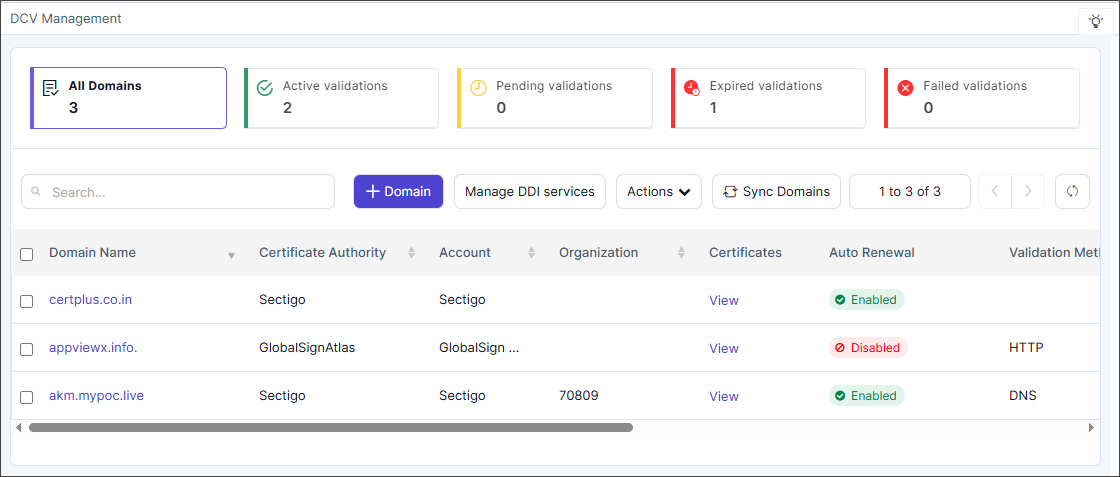
-
To filter the inventory by domain status or to view all domains, click the
applicable filter at the top of the page.
- All Domains
- Active Validations
- Pending Validations
- Expired Validations
- Failed Validations.
-
The following columns are displayed in the DCV management inventory.
Table 1. Column descriptions for the DCV Management page. Column Name Description Domain Name Displays the domain registered for Domain Control Validation (DCV). Certificate Authority Shows the CA responsible for issuing certificates for the domain. Account Indicates the CA account or profile associated with the domain. Organization Specifies the organization to which the domain belongs. Certificates Lists the certificates linked to the domain for validation and renewal. A View link is available in the column details. Clicking this link displays the DCV Management > Certificates page with certificate details as follows:
- Common Name
- Serial Number
- Group
- Discovery Source
- Associated Object
- Valid To (GMT)
- Status
- Certificate Authority
Auto Renewal Shows whether automatic domain revalidation and renewal are Enabled or Disabled. Validation Method Displays the method used for domain validation (e.g., DNS, HTTP). Preferred Revalidation Method Displays the validation method configured as the preferred method for the next revalidation event. Set through the Update Validation Method or Set Auto Revalidation actions. Empty when no preferred method has been configured. Request Info Provides details about the latest validation or renewal request. A request number link, R:XXX is available in the details, for example, R:123. Clicking this link displays the DCV Management > View Work Order Status, that contains the detailed workflow steps for any of the actions taken.
Renewal Schedule Indicates the configured schedule or frequency for domain revalidation. Expiration Date Shows the date when the current domain validation will expire. Validation Status Displays the current validation state of the domain—Active, Pending, and Expired. The status values are clickable and displays the validation flow in a pop-up window. Refer the note below.
Revalidation Status Displays the current processing state when Revalidate on Demand has been triggered: Queued, In Progress, Success, or Failed. A Retry option is displayed for failed revalidations. The status is updated by a cron job that runs every minute. Note: AppViewX introduces a pre-validation step to verify the availability of the DCV token before initiating the CA validation request. The system performs a global DNS or HTTP lookup to confirm that the DCV token is publicly accessible from external resolvers or endpoints. AppViewX proceeds with the CA DCV validation request only after this pre-validation succeeds. Internal DCV validation is performed using two methods:- HTTP-based validation, which uses a curl-based check
to verify the HTTP challenge response on the target
domain.
curl -s -L --max-time 10 <http url> - DNS-based validation, which uses the dig command to
confirm the presence of the required DNS challenge
records.
Where, <recordName> is DomainName and<Record Type> is TXT or CNAMEdig +short <recordName> <Record Type>
-
Use the following options to modify the inventory view:
Icons/Fields Actions Search field Type text related to the column information to display specific records 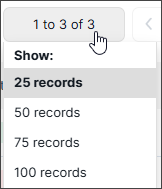 (Show
Records)
(Show
Records)Select the number of records to be displayed on the page.  (Page
Navigation)
(Page
Navigation)Move to the next or previous pages using the right and left arrow keys respectively.  (Refresh)
 Refreshes the page to display the latest information. Select All Selects all domains across all pages. Available for all actions. If more than 100 domains are selected, or if Select All is used, eligibility evaluation and processing run asynchronously on the server. - Click the +Domain button to add a new domain. Refer to the section Adding a New Domain for more details.
- Click the Manage DDI Services button to manage DDI devices. Refer to the section DDI Vendor Configuration.
-
Click Actions dropdown to perform the following operations on selected
domains:
- Revalidate on Demand
- Update Validation Method
- Set Auto Revalidation
- Delete
- Click the Sync Domains button to retrieve and update all active domains available in the CA settings, ensuring that the DCV Management page reflects the latest domain information from the configured Certificate Authorities.
Revalidate on Demand
Supported validation methods: DNS-based (CNAME or TXT). HTTP-based validation is not supported for bulk revalidation.
- Select the check box(es) next to one or more domains in the inventory or click Select All to select all domains across all pages.
- Click Actions > Revalidate on Demand. The Revalidate on Demand dialog is displayed.
-
Review the eligibility breakdown:.
- For selections of fewer than 100 domains, the dialog displays an eligibility accordion separating Eligible domains (those configured for automated validation) from Non-eligible domains (those configured for manual validation only).
- For Non-eligible domains, two options are available:
- Proceed with eligible domains only — non-eligible domains are skipped.
- Update validation method for non-eligible domains — converts selected non-eligible domains to an automated method (CNAME or TXT) before including them in the revalidation.
- For selections of more than 100 domains or when Select All is used, the eligibility evaluation runs server-side and the dialog shows a summary message only.
- If updating non-eligible domains, select the preferred DNS Validation Type (CNAME or TXT) and the DNS Server to use for those domains.
-
Click Revalidate. The revalidation request is submitted.
After submission, the Revalidation status column updates as follows:
Table 2. Revalidation Status Values Status Description Queued Domain is queued revalidate triggered. In Progress Domain is actively being revalidated. A cron job runs every minute to move domains from Queued to In Progress. A maximum of 50 domains can be In Progress at any one time; remaining queued domains wait for the next cron cycle. Success Revalidation completed successfully. The Validation Status updates to Active. Failed Revalidation failed. A Retry option is displayed in the Revalidation Status column. Note:- Up to 50 domains are processed concurrently. For inventories with thousands of domains, revalidation runs in parallel batches, reducing total processing time significantly.
- If the validation status column shows Pending with a validate link after revalidation, select the validate link and confirm the action in the Confirm Validation pop-up to initiate validation manually. Status updates to Active or Failed after the validation process completes.
Update Validation Method
The Update Validation Method action allows the preferred DNS validation method (DNS‑CNAME or DNS‑TXT) to be set for one or more domains in bulk. The configured method is stored as the Preferred Revalidation Method and is applied the next time revalidation is triggered automatically or on demand.
- Select the check box(es) next to one or more domains in the inventory, or click Select All to select all domains across all pages.
- Click Actions > Update Validation Method. The Update Validation Method dialog is displayed.
- Review the eligibility breakdown (for selections of fewer than 100
domains):
- Eligible domains are those already configured with an automated validation method and are listed separately from Non-eligible domains (configured for manual validation).
- For Non-eligible domains, select the DNS Validation Type (CNAME or TXT) and DNS Server to update their validation method. This converts them to eligible and includes them in the update.
- Alternatively, proceed with eligible domains only by not updating the non-eligible ones.
- For selections of more than 100 domains or when Select All is used, the eligibility evaluation runs server-side.
- Select the preferred DNS Validation Type:
- DNS-CNAME: supported by DigiCert, Sectigo, and GlobalSign Atlas. Note: Sectigo supports CNAME only. For GlobalSign MSSL and SwissSign, TXT is used even if CNAME is selected.
- DNS-TXT: supported by all five DCV-enabled CAs. Note: For Sectigo, CNAME is used even if TXT is selected.
- Optionally, select the DNS Server to use for validation.
- To update the revalidation schedule at the same time, enter the number of days before expiry to trigger automatic revalidation, or select Disable to turn off automatic revalidation for selected domains.
- Click Update. The Preferred Revalidation Method column updates
to reflect the configured method. For large selections, the update runs
asynchronously.Note: The Preferred Revalidation Method is applied at the next revalidation event. It does not trigger an immediate revalidation. To revalidate domains immediately, use the Revalidate on Demand action.
Set Auto Revalidation
Set Auto Revalidation supports selecting the DNS validation type (CNAME or TXT) and mapping a specific DNS server. An eligibility breakdown is displayed for selections of fewer than 100 domains.
- Select the check box(es) next to one or more domains in the inventory, or click Select All to select all domains.
-
Click Actions > Set Auto Revalidation.
The Set Auto Revalidation dialog is displayed.
-
Review the eligibility breakdown (for selections of fewer than 100
domains):
- Eligible domains support automated revalidation. Non-eligible domains are configured for manual validation only.
- To include non-eligible domains, select the DNS Validation Type (CNAME or TXT) and DNS Server to update their method. This makes them eligible and includes them in the auto revalidation schedule.
- CA-specific validation method support:
- Sectigo — CNAME only. TXT is not supported
- GlobalSign MSSL, SwissSign — TXT only. CNAME is not supported.
- DigiCert, GlobalSign Atlas — both CNAME and TXT are supported.
- For selections of more than 100 domains or when Select All is used, the eligibility evaluation runs server-side and a summary message is displayed instead of the accordion.
- In the Revalidate before expiry field, enter the number of days before domain expiry to trigger automatic revalidation. A value of 30 days is recommended as a starting point.
- Select the DNS Validation Type (CNAME or TXT) and, optionally, the DNS Server to use for automated revalidation.
- Click Set. The auto revalidation schedule is saved. The Revalidation Schedule column updates to reflect the configured interval (for example, 30D before Expiry) and the Preferred Revalidation Method updates to the selected DNS type.
Delete Action
In the case of bulk deletion, the platform processes consolidated results, logs an audit trail entry for every deleted domain, and provides the user with a summary notification that includes the total number of domains requested for deletion, the number of successful deletions, and details of any failures returned by the CA.
-
Select
the check box(es) next to a valid domain in the
inventory.
The Delete domain(s) pop-up is displayed.
- In the Delete domain(s) pop-up's Comments field, enter the reason for deletion.
-
Click Delete.
The domain(s) are deleted successfully.
Audit Logging
All DCV activity performed from this inventory including revalidation outcomes, method updates, auto revalidation configuration, and domain deletions are recorded in Certificate Logs (CLM > Alerts & Logs > Certificate Logs).
When DCV CLM Validation is enabled in General Settings, validation failures triggered at certificate action time are also captured as log entries. Each entry records: domain name, CA, validation method attempted, result (Passed or DCV Failed), blocked CLM action (if applicable), timestamp, and the user or job that initiated the action.
