
Script Execution Widget
Using Script Execution Widget, scripts which can be executed within 5 minutes can be configured and executed.
Before you begin: Set Timeout in system Settings. Refer to Configuring Script Execution Settings.
Configuring Script Execution Widget
-
Add scripts.
-
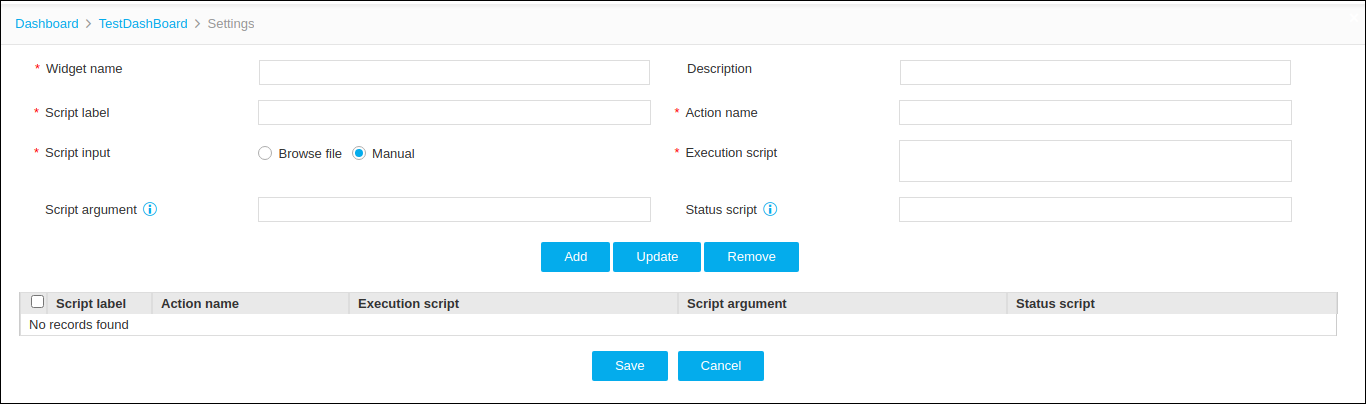
Enter or select the script details.
Table 1. Add Scripts - Field and Description Table Name Description *Widget Name User defined Name for the Widget Note: No special characters are allowed, except '_' , '.' , '-' , '|' , ':'. The name should not start with a special character.Description Description for the Widget *Script label Enter script label. *Action Name Enter the action name. *Script Input Browse file:
Script file can be uploaded. Supported file formats are Python (.py) and Shell script (.sh).
Manual:
Type a shell script directly in the text box.
*Execution Script 1.Python (.py) or Shell (.sh) file can be uploaded.
or
2. Manual script input can be added.
Script argument Arguments for the script can be mentioned with space as delimiters. Note: Script arguments are supported only for Shell (.sh) scripts and are not supported for Python (.py) scripts.
Status script The full path of the scripts in AppViewX servers to update the color and status message of the bar. This functionality is used to get the status/result of a script. Notes:
-
The status script must be placed in the default directory: <installation_location>/appviewx/appviewx_dependencies/vw
-
If placed directly in the vw directory, specify the file name (e.g., status.sh or status.py).
-
If placed inside a subdirectory under vw, specify the relative path (e.g., <subdirectory>/status.sh).
-
- After adding all information, click Add and Save.
Execution of Scripts
-
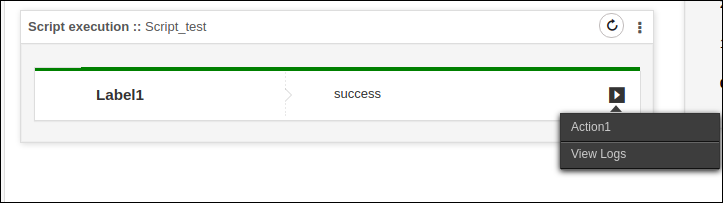
Click the Play icon, and then click the Action
Name configured.
-
To verify the output logs, click the View Logs
option.
Note: All script executions run inside a secure Python Sandbox pod. Standard security restrictions enforced by the Python Sandbox apply to the widget, including restricted access to direct database queries and blocked execution/import of restricted Python packages.
