Direct Requests
The Direct Requests page lists auto-enrollment certificate requests processed through high-speed transactions. For these requests, the visual workflow is bypassed to significantly improve performance. This page provides a centralized view of request statuses, metadata, and activity logs. No actions can be performed on this page.
Note: While configuring an auto-enrollment request (for EST, ACME,
SCEP, or Microsoft Intune), in the Advanced Settings section, set High Speed
Transaction to Yes to route and display the requests on the Direct
Requests page.
Access the Direct Requests page
- Go to
 (Menu) > .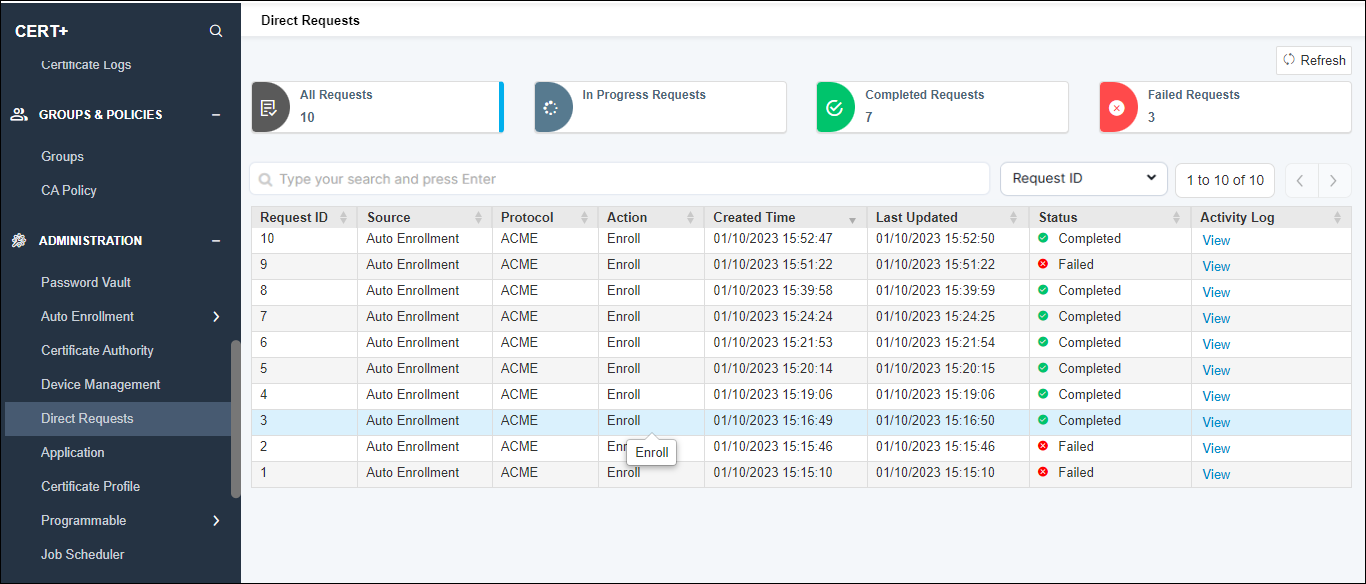
- The Direct Requests page includes the following components
Page components
The Direct Requests page includes the following components:
Status summary cards (Echelons)
Clickable summary cards at the top
of the page display the count of requests by status. Select a card to filter the
grid by that status:
-
All requests: Displays all requests regardless of status.
-
In Progress Requests: Displays requests currently being processed.Note: If a request remains stuck In Progress due to a client timeout or pod restart, run the Clear In-Progress Direct Requests job (CLM > Administration > Job Scheduler) to transition it to Failed and unblock retries.
-
Completed Requests: Displays successfully processed requests.
-
Failed Requests: Displays requests that encountered errors.
Search and filter requests
Use the search bar above the grid to
find specific certificate requests. You can narrow your search to a specific
attribute or search across all supported attributes.
-
In the search bar, select the dropdown next to the search box to choose a filter criteria:
Filter option Description Request ID Searches only within the Request ID field. (Default) Common Name Searches only within the certificate Common Name field. Serial Number Searches only within the certificate Serial Number field. All Performs a keyword search across Request ID, Common Name, and Serial Number. - Select the Filter option then enter your search term in the box and press Enter.
- To reset the search and view all records, clear the search box and press Enter.
Note: Refresh to reload the grid with the
latest request data.
Request gridThe table displays the
following columns for each certificate request:
| Column | Description |
|---|---|
| Request ID | Unique identifier assigned to the certificate request. |
| Source | Origin of the request (typically Auto Enrollment). |
| Protocol | Protocol used for enrollment (EST, ACME, SCEP, or MS INTUNE). |
| Action | Most recent CLM lifecycle action performed on the request. |
| Common Name | Common Name (CN) of the certificate. |
| Serial Number | Serial number of the certificate. |
| Created Time | Date and timestamp when the request was initiated. |
| Last Updated | Date and timestamp when the request was last modified. |
| Status | Current state of the certificate request (such as In Progress, Completed, or Failed). |
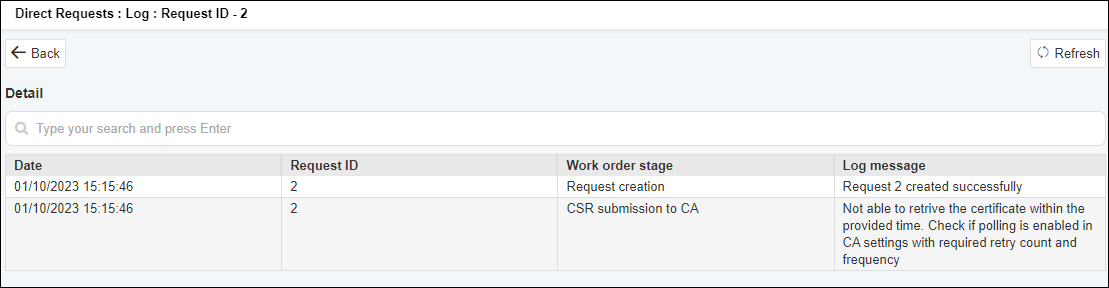
| Activity Log | Select View to open the audit log displaying detailed status transitions and diagnostic messages throughout the request lifecycle. |
An example of a failed request log is displayed below.