
BOM Upload and Crypto Asset Inventory
The BOM (Bill of Materials) module in AppViewX Quantum Trust Hub enables you to upload, parse, and analyze Cryptographic Bills of Materials (CBOMs)/ Software Bill of Materials (SBOMs) to gain comprehensive visibility into the cryptographic assets used across your organization's software ecosystem. This module extends the platform's agentless integration capabilities, allowing you to assess PQC (Post-Quantum Cryptography) readiness by examining third-party and internal cryptographic dependencies.
Understanding Cryptographic Bill of Materials (CBOM)
What is a CBOM?
A Cryptographic Bill of Materials (CBOM) is a structured, machine-readable inventory of all cryptographic assets used within a software application, service, or system. It documents the cryptographic algorithms, protocols, libraries, certificates, keys, and cipher suites that your applications depend on.
Think of a CBOM as a comprehensive manifest of your cryptographic landscape — similar to how a Software Bill of Materials (SBOM) catalogs software components and dependencies, a CBOM specifically catalogs the cryptographic elements that protect your data and communications.
Why is CBOM Important?
As quantum computing advances, organizations must understand their cryptographic exposure to plan effective migration strategies. A CBOM provides the foundational visibility required to:
- Identify quantum-vulnerable cryptography — Pinpoint algorithms such as RSA, ECC, and classical Diffie-Hellman that are susceptible to quantum attacks.
- Assess cryptographic dependencies — Understand which services and applications rely on specific cryptographic components, revealing the blast radius of any vulnerability.
- Plan PQC migration — Prioritize which systems to upgrade first based on risk exposure and dependency mapping.
- Maintain compliance — Meet emerging regulatory requirements that mandate cryptographic transparency and quantum-readiness assessments.
- Enable continuous monitoring — Track your organization's cryptographic posture over time through repeated CBOM assessments.
Key Benefits of the BOM Module
| Benefit | Description |
|---|---|
| Centralized Crypto Visibility | Consolidates all cryptographic assets from uploaded BOMs into a single, searchable inventory with categorized components. |
| Automated Quantum Readiness Scoring | Automatically evaluates each cryptographic component against known quantum vulnerability benchmarks and provides a readiness classification. |
| Actionable Recommendations | Provides remediation guidance for each vulnerable component, enabling teams to take targeted action toward quantum safety. |
| Dependency Mapping | Visualizes inter-component and component-to-service relationships, helping you understand the impact of replacing or upgrading any cryptographic asset. |
| Standards-Based Parsing | Supports the industry-standard CycloneDX BOM format, ensuring compatibility with widely adopted CBOM generation tools. |
| Re-upload and Version Tracking | Supports iterative uploads, automatically detecting and replacing existing records based on unique identifiers. |
Supported Formats and Versions
The BOM module supports the CycloneDX BOM standard, which is the industry-leading format for expressing cryptographic and software bill of materials.
| Parameter | Supported Values |
|---|---|
| BOM Standard | CycloneDX |
| Specification Versions | 1.6 and above (including 1.7) |
| File Formats | JSON, XML |
| Maximum File Size | 50 MB |
| Upload Mode | Single file per upload |
Access Control
To access the BOM module, ensure the necessary permissions are configured for the user. From the main menu, navigate to Platform > Identity > Role > Authorized Functions > Quantum Trust Hub > BOM to configure the required permissions.
Available Permissions
| Permission | Description |
|---|---|
| View | Allows the user to view the BOM Upload Inventory and the detailed crypto asset inventory for individual BOM records. |
| Upload | Allows the user to upload new BOM files and re-upload failed or existing records. |
| Export | Allows the user to export BOM data in CSV or XLS format. |
| Delete | Allows the user to delete BOM records from the inventory. |
Accessing the BOM Module
To access the BOM module:
- Navigate to Quantum Trust Hub from the main menu.
- Select BOM from the left navigation panel.
The BOM landing page displays the Upload Inventory — a consolidated list of all BOM files that have been uploaded to the platform.
BOM Inventory
The Upload Inventory is the primary landing page of the BOM module. It provides a
consolidated view of all uploaded BOM files and their high-level metadata. 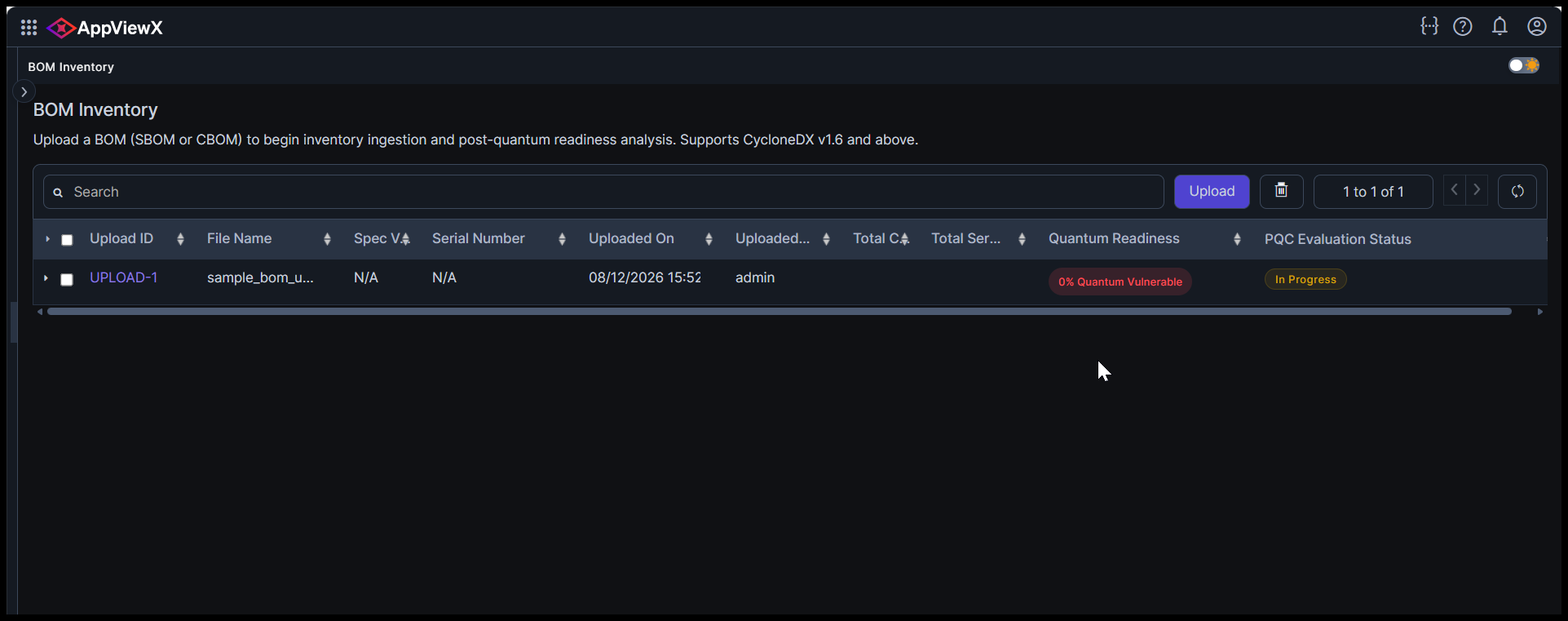
BOM Inventory Details
| Field | Description |
|---|---|
| Upload ID | A system-generated unique identifier for each uploaded BOM record. Click the Upload ID to view the detailed crypto asset inventory for that BOM. |
| File Name | The name of the uploaded BOM file. |
| Spec Version | The CycloneDX specification version declared in the BOM file. |
| Serial Number | The unique serial number from the BOM file metadata. |
| Uploaded By | The AppViewX user who uploaded the BOM file. |
| Total Components | The total number of cryptographic components identified in the BOM. |
| Total Services | The total number of services identified in the BOM. |
| Quantum Readiness (%) | The percentage of components classified as quantum-vulnerable. Displays 0% if no vulnerabilities are detected. |
| PQC Evaluation Status | Indicates the processing state of the upload: Completed or Failed. |
Uploading a BOM File
Upload a CycloneDX BOM file to parse and analyze the cryptographic assets contained within it.
Prerequisites
- You must have the Upload permission for the BOM module (see Access Control).
- The BOM file must be in CycloneDX JSON or XML format.
- The file size must not exceed 50 MB.
- The BOM file must conform to CycloneDX specification version 1.6 or above.
Procedure
To upload a BOM file:
- Navigate to Quantum Trust Hub > BOM.
- Click Upload.
- In the file browser, select the CycloneDX JSON or XML file you want to upload.
- Click Submit.
The platform validates the file, parses the cryptographic components and services, computes quantum readiness scores, and adds the record to the Upload Inventory.
Re-uploading a BOM File
If you upload a BOM file that shares the same specVersion, serialNumber, and version as an existing record, the platform overwrites the existing record with the new file content. A new entry is not created.
This behavior allows you to update an existing BOM record with revised data without duplicating entries in the inventory.
| Unique Identifier Fields | Description |
|---|---|
| specVersion | The CycloneDX specification version of the BOM file. |
| serialNumber | A unique serial number assigned to the BOM by the generating tool. |
| version | The version number of the BOM document. |
Viewing Crypto Asset Details
Click an Upload ID in the BOM Upload Inventory to open the detailed crypto asset view for that BOM file. This page displays all individual cryptographic components extracted from the BOM, with their properties, quantum readiness status, and recommendations.
Component Inventory Fields
| Field | Description |
|---|---|
| Name | The name of the cryptographic component as declared in the BOM. |
| Type | The category of the cryptographic component. Supported types: Certificate, Protocol, Key, Library, Algorithm. |
| Version | The version of the component, if applicable (commonly available for libraries). |
| PURL | The package URL identifier for the component, if available. Typically, present for libraries. |
| Crypto Properties | The Crypto Properties and protocol details associated with each CBOM component, sourced directly from CBOM component data. |
| Quantum Readiness | The computed quantum safety classification for the component. See Quantum Readiness Assessment for details. |
| Recommended Action | The recommended remediation action for the component to achieve quantum safety. |
Supported Component Types
| Type | Description | Examples |
|---|---|---|
| Algorithm | Cryptographic algorithms including symmetric, asymmetric, hash, MAC, and key derivation functions. | AES-256, RSA-2048, SHA256, ML-DSA, ML-KEM |
| Library | Cryptographic software libraries that implement algorithms and protocols. | BouncyCastle, OpenSSL, libsodium |
| Protocol | Cryptographic communication protocols. | TLS 1.3, SSH, IPsec |
| Certificate | Digital certificates with associated algorithms, key sizes, and validity information. | X.509 certificates, Root CAs, Intermediate CAs |
| Key | Cryptographic keys including key exchange mechanisms. | RSA-2048 key, ECDH P-256, ML-KEM-768 |
Crypto Properties Details Panel – Field Reference
When browsing the Crypto Asset Inventory under a CBOM upload, each row in the Crypto Properties column shows a small icon (↗). Clicking this icon opens the Crypto Property Details side panel — a quick-access view that surfaces the full cryptographic metadata for that specific component without leaving the inventory table. This is particularly useful when a security analyst or DevSecOps engineer needs to inspect the exact algorithm attributes, standard identifiers, or dependency relationships of a crypto asset during a PQC readiness assessment or compliance review.
The detail panel is organized into four sections:
Crypto Properties
The Crypto Properties section displays the core cryptographic attributes of the component, extracted from the cryptoProperties field of the uploaded CycloneDX CBOM.
The attributes are rendered as tags and vary by component type (algorithm, key, certificate, library, protocol).
Examples include the algorithm primitive (e.g., ML-DSA-44), cryptographic functions supported (sign, verify, signature), execution mode (software-plain-ram), and the target implementation platform (Implementation Platform: x86_64) etc.
Properties (Standard Identifiers & Certification)
The Properties section captures formal registry and compliance metadata for the cryptographic component, sourced directly from the cryptoProperties fields in the uploaded CycloneDX CBOM.
This information helps Security Analysts and Compliance Officers quickly determine whether the algorithm/key is a formally registered standard and whether it meets a specific compliance or certification bar (e.g., FIPS 140-2/3)
Dependencies
The Dependencies section reveals the relationships between cryptographic components and services within the BOM. Understanding these dependencies is critical for assessing the impact of migrating or replacing any cryptographic asset.
Understanding Dependencies
A BOM file contains two primary categories of items:
- Components — Individual cryptographic elements such as algorithms, libraries, protocols, certificates, and keys.
- Services — Application-level services (for example, an authentication service, a payment gateway) that use one or more cryptographic components.
Dependencies map the relationships between these items:
- A component may depend on or be used by another component.
- A component may be used by one or more services.
Viewing Dependencies
In the component detail view, expand the Dependencies section to see where the selected component is referenced. Each dependency entry indicates:
| Indicator | Description |
|---|---|
| Component (displayed in neutral color) | Another cryptographic component that uses or depends on the selected component. |
| Service (displayed in blue) | An application service that uses the selected component. Hover over a service to view its endpoint URL(s). |
Why Dependencies Matter
When planning a cryptographic migration, you need to understand the blast radius of any change. For example, if you plan to replace a quantum-vulnerable algorithm (such as RSA-2048) with a quantum resistant alternative (such as ML-KEM), the Dependencies section shows you:
- Which libraries implement that algorithm
- Which protocols rely on it
- Which services are affected by the change
This impact analysis enables informed decision-making and helps prioritize migration efforts.
Pagination
The Dependencies section displays up to 10 entries at a time. If more dependencies exist, click to load the next set of entries (up to 50 per page).
Service Endpoints
For service-type dependencies (displayed in blue), hover over the service name to view the associated endpoint URL(s). A service may have one or more endpoints listed, which are extracted from the BOM's service definitions.
External References
The External References section displays any documentation links, website URLs, or other external resources associated with a specific component. These references are declared in the BOM file under the externalReferences field for each component.
Reference Types
Common external reference types include:
- Documentation — Links to official documentation for the component.
- Website — Links to the component's official website or project page.
- VCS (Version Control System) — Links to the source code repository.
Quantum Readiness Assessment
The platform automatically evaluates each cryptographic component in the uploaded BOM against known quantum vulnerability benchmarks and assigns a quantum readiness classification.
Quantum Readiness States
| State | Description |
|---|---|
| Quantum Resistant | The component uses cryptographic algorithms that are considered safe against quantum attacks (for example, ML-KEM, ML-DSA, AES-256). |
| Quantum Vulnerable | The component uses cryptographic algorithms that are known to be breakable by quantum computers (for example, RSA, ECC, classical Diffie-Hellman). |
| Hybrid | The component uses a combination of classical and quantum-resistant algorithms, providing transitional security. |
| Review Required | The platform cannot definitively classify the component due to insufficient information (for example, missing algorithm details). Manual review is recommended. |
How Quantum Readiness is Calculated
The platform analyzes the following attributes to determine quantum readiness:
- Algorithm type and name — Checked against a curated database of quantum-safe and quantum-vulnerable algorithms.
- Key size — Evaluated against minimum key-size thresholds for quantum safety.
- Protocol dependencies — Protocols are assessed based on the cipher suites and key exchange mechanisms they employ.
If the platform cannot obtain sufficient information (for example, algorithm name or key size is missing from the BOM), the component is classified as Review Required.
Recommendation Actions
For each component, the platform provides a recommended action to improve quantum readiness. These recommendations are contextual and depend on the current state and type of the component. Common recommendations include:
- Replace the algorithm with a quantum-resistant equivalent.
- Upgrade the library to a version that supports PQC algorithms.
- Migrate the protocol to a version that supports hybrid or quantum-safe cipher suites.
- Review the component and manually assess quantum readiness.
Quantum Vulnerable Percentage
The Quantum Vulnerable (%) metric displayed in the Upload Inventory represents the proportion of components within a BOM that are classified as quantum-vulnerable. This metric is always displayed, even if the percentage is 0%.
Exporting BOM Data
Export the complete crypto asset data for a BOM record to CSV or XLS format for offline analysis, reporting, or integration with other tools.
To export BOM data:
- Navigate to Quantum Trust Hub > BOM.
- Locate the BOM record you want to export in the Upload Inventory.
- Click the Export option for that record.
- Select the desired format (CSV or XLS).
The export includes all crypto asset data for the selected BOM record, including component details, quantum readiness classifications, and recommendations.
Managing BOM Records
Deleting BOM Records
You can delete one or more BOM records from the Upload Inventory. Deleting a record removes it permanently, along with all associated crypto asset data.
To delete BOM records:
- Navigate to Quantum Trust Hub > BOM.
- Select one or more BOM records from the inventory using the checkboxes.
- Click Delete.
- Confirm the deletion when prompted.
Handling Upload Failures
If a BOM file upload fails (due to file corruption, format issues, exceeding the maximum nesting depth, or other validation errors), the inventory displays the record with a Failed status.
To view failure details:
- Click the failed record to view the error message and timestamp.
To retry the upload:
- Click Re-upload on the failed record to upload the corrected BOM file.
Common causes of upload failure include:
| Cause | Resolution |
|---|---|
| Malformed JSON or XML | Validate the file structure using a CycloneDX validation tool before re-uploading. |
| Exceeds maximum nesting depth (25 levels) | Simplify the BOM structure by flattening nested components where possible. |
| Unsupported file format | Ensure the file is in JSON or XML format. Protobuf format is not supported. |
| File size exceeds 50 MB | Reduce the file size by splitting large BOMs or removing unnecessary metadata. |
| Invalid CycloneDX schema | Verify the file conforms to CycloneDX specification version 1.6 or above. |
