
Running a Software Upgrade on Standalone Devices
To run this workflow:
- Go to Menu > ADC+ > AUTOMATION > Workflow Catalog > View/Run
- Click the F5 BIG-IP System category on the View/Run Workflows page.
-
On the popup window, hover the mouse over the Software Upgrade on
Standalone F5 Devices workflow.
The Run and Schedule buttons are displayed.
-
Click
 .
The Request > Software Upgrade on Standalone F5 Devices :: FormBuilder page is displayed.
.
The Request > Software Upgrade on Standalone F5 Devices :: FormBuilder page is displayed. -
Enter/select Device Selection details.
Table 1. Device Selection Section - Field and Description Table Field Description *Datacenter Displays the list of datacenters of the devices, which are created in the Device Inventory. Select the datacenter of a device from the drop-down option for which this request is to be created. For the devices, which are created without a datacenter in the Device Inventory, select the datacenter as None. *Device Name Displays the list of devices associated with the selected datacenter. If the datacenter is selected as None, the devices that are created without datacenter details are listed. Select the desired device from the drop-down option. The fields in the Device Details section are auto-populated. -
Enter/select Image and Volume Details.
Table 2. Field description for the Image and Volume Details section Field Description *ISO File Name Click the retrieve button and then select a desired ISO file name from the dropdown list. *New Volume Name Enter the new volume name. The format of the volume name must be in the form of HDX.Y, CFX.Y, or MDX.Y. -
Select Renew License.
The possible values include:
- No: This option does not allow you to renew the license. By default, this option is selected.
- Yes: Select this option to generate
-
Click Next.
The Confirmation dialog box is displayed.
-
To save this form so you can edit it later, click Save Draft and then click
OK.
The form will be saved as Open request under Request > My Request.
OR
To submit the form, click OK.
The software upgrade starts. It takes a while to complete the software upgrade.Note:- A request is created for this workflow. To view the request, navigate to Menu > Request > All.
- If there is any failure in running this workflow, start a new workflow by providing the correct data.
- Alternatively, clone the request, update the correct input data in the form input, and submit the workflow.
-
After the manual check, click Proceed.
The Confirmation dialog box is displayed.
- Click Ok to submit the form.
-
After the Object Count Comparison, click Proceed.
The Confirmation dialog box is displayed.
-
Click Ok to submit the form.
The implementation process for software upgrade is completed.
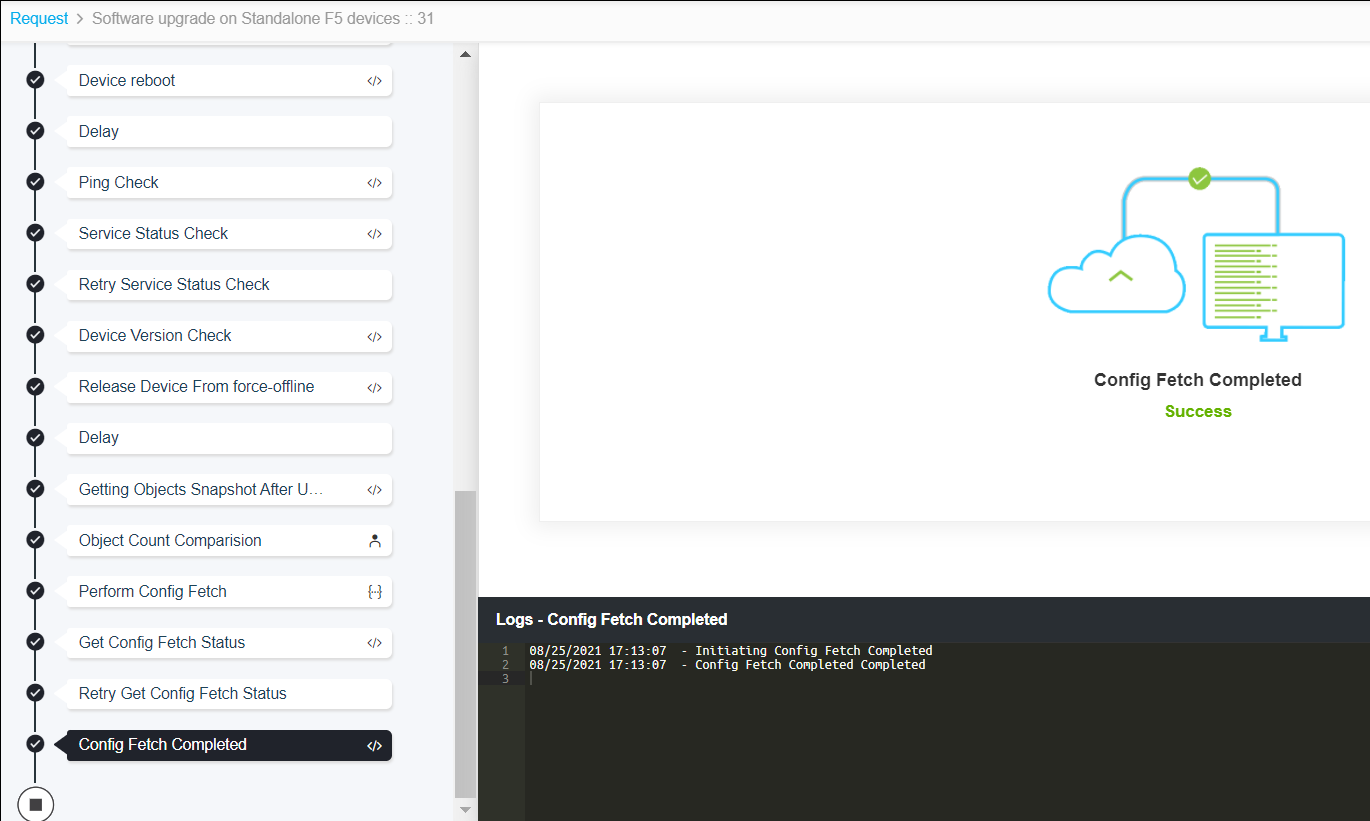
-
In case the request has to be reverted, execute the following steps:
-
Select the Rollback option.
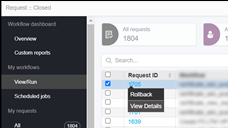
-
Select the Rollback option.
