
Modify Citrix SLB Virtual Server
By running this workflow, you can modify a SLB virtual server on Citrix device by fetching the device details.
To run this workflow:- Go to Menu > ADC+ > AUTOMATION > Workflow Catalog > View/Run
- Click the Citrix SLB category on the View/Run Workflows page.
-
On the popup window, hover the mouse over the Modify
Citrix SLB Virtual Server workflow.
The Run and Schedule buttons are displayed.
-
Click
 .
The Request > Modify Citrix SLB Virtual Server :: FormBuilder page is displayed.
.
The Request > Modify Citrix SLB Virtual Server :: FormBuilder page is displayed. - Fetch and select the details of device, virtual server, and service or service group.
- Modify the necessary details of a virtual service for a device.
-
Click the Submit button.
The Confirmation popup opens.Note:
- If you want to save this form to edit it later, click the Save Draft button, and then click Ok in the Confirmation popup window. The form will be saved as Open request under Request > My Request.
- If you want to cancel this form, click the Cancel button.
-
Click Ok to submit the form.
The validation starts automatically and reaches the Review stage.Note:
- If there is any failure at this stage, start a new request by providing the correct data.
- Alternatively, select the failed request and clone it. Update the correct input data in the form input, and submit the workflow again.
-
Review the input data under the implementation, rollback, and postvalidation
tabs:
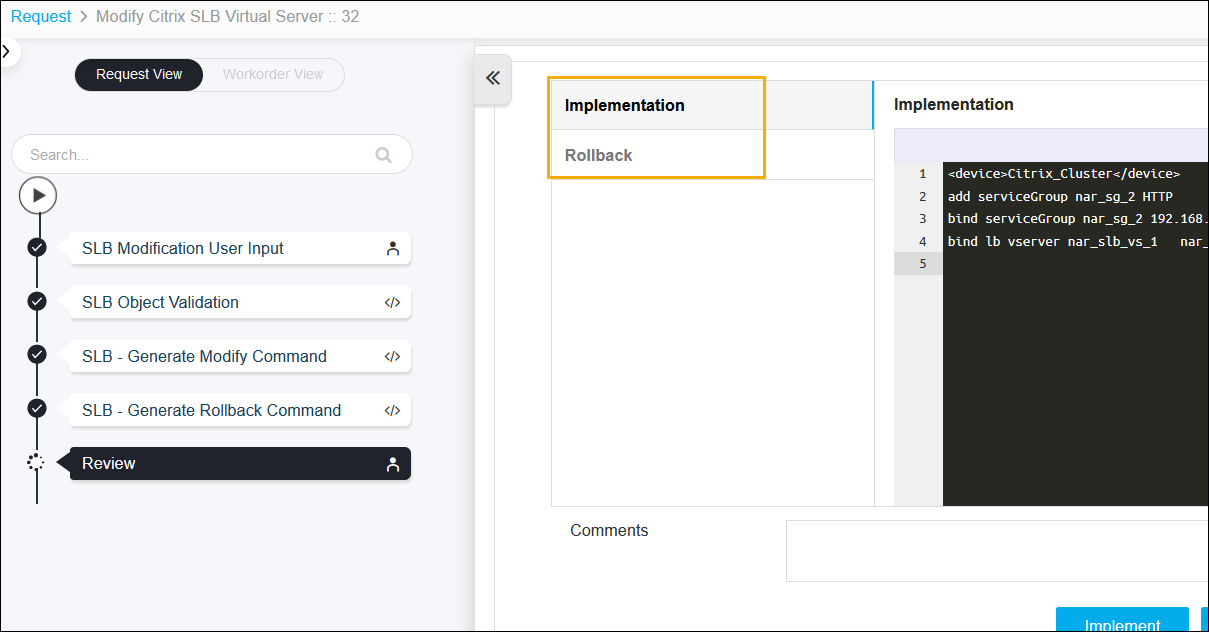
- (Optional) If you need to update any data at this stage, you can do so by clicking the right-side of the mouse on the data and selecting the desired option.
-
After the review, click the Implement button.
The Confirmation popup opens.Note: To stop running the workflow creation, click Cancel.
-
Click Ok to continue the workflow creation.
It takes a while to complete the request.
-
The workflow is created and the email is triggered to the configured email
IDs.
Note: The stages of the request are shown in the left-side of the screen. To view a particular stage of the request, click the respective stage.
