
Integrating SIGN+ using Native Tools
SIGN+ Package
The SIGN+_Package is designed to integrate with the AppViewX SIGN+ Platform for artifact signing. It includes all required libraries and certificates. The package features both the CSP and PKCS#11 library files, facilitating integration with various native signing tools for file signing.
Downloading the SIGN+ Package
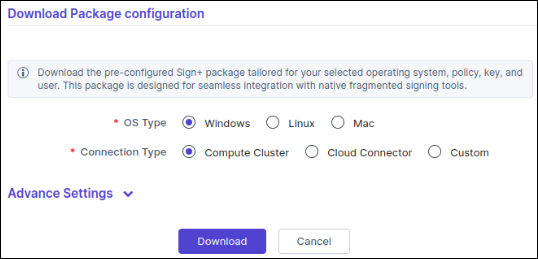
- Basic Package Download
- This option downloads only the Base Package, which includes the Installer Executable and SIGN+ API Connector Configurations.
- Additional configurations, such as Authentication Type, Credentials, and Signing Policy, are fetched at runtime when the SIGN+ Installer is executed.
- This option is ideal when an Administrator needs to distribute the
same SIGN+_Package to a large number of users.
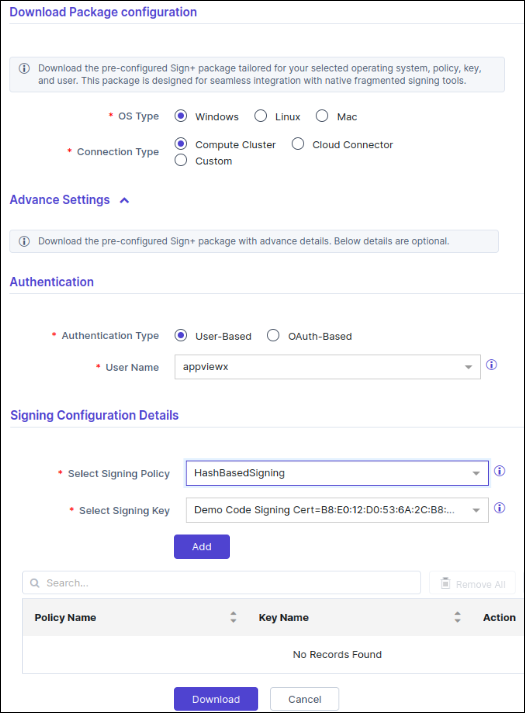
- Advanced Package Download
- In this option, all configurations, including Authentication Type,
Connector Configurations, Authentication Credentials, and Signing
Policy, are selected during the download of the SIGN+ Package.
- In this option, all configurations, including Authentication Type,
Connector Configurations, Authentication Credentials, and Signing
Policy, are selected during the download of the SIGN+ Package.
SIGN+ Installer
AppViewX SIGN+ Installer is a utility executable included in the SIGN+ Package. It handles the installation of prerequisites necessary for using the AppViewX CSP and PKCS#11 Provider with various native signing tools. The installer manages the setup of required configurations and libraries and dynamically generates README files with the necessary commands for use with different tools.
SIGN+ Installer Usage
Windows
The SIGN+ Installer for Windows now provides two installation modes: Admin and Non-Admin.
- Admin Mode: Requires administrator privileges and installs dependencies for both AppViewX CSP and the PKCS#11 Provider.
- Non-Admin Mode: Does not require administrator privileges and installs only the dependencies needed for the PKCS#11 Provider.
Administrator Mode
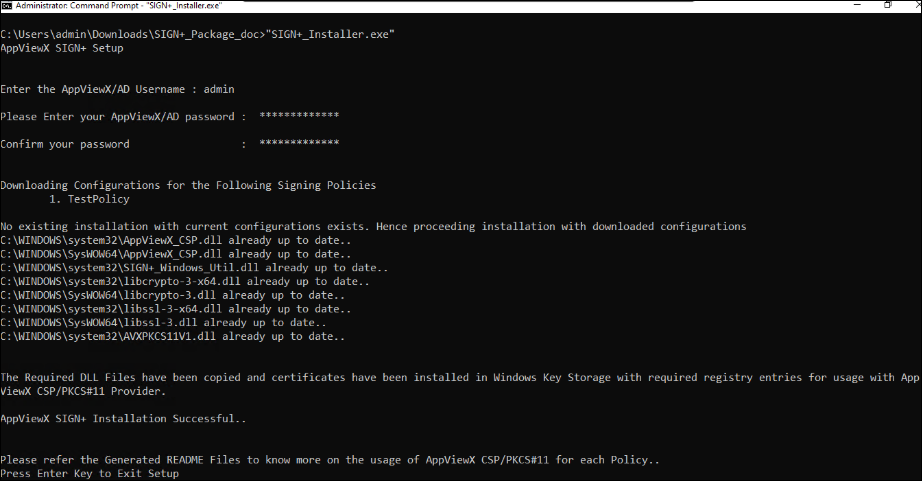
- Extract the SIGN+_Package.zip and open the extracted folder.
- Run SIGN+_Installer.exe as an Administrator.
- Enter the requested details to install the prerequisites for using the
AppViewX CSP/PKCS#11 Provider with native signing tools.
Non Administrator Mode
Running the SIGN+ Installer Windows executable in Non-Administrator Mode installs the prerequisites and dependencies required only for the AppViewX PKCS#11 Provider. This mode is recommended if there are restrictions on running in Administrator mode on the signing machine, and signing is performed using Java-based tools like Jsign, Jarsigner, Apksigner, etc.
- Extract the SIGN+_Package.zip and open the extracted folder.
- Run SIGN+_Installer.exe.
- Choose Yes when prompted for “Do you want to proceed installing
AppViewX SIGN+ only with PKCS11 Support?”
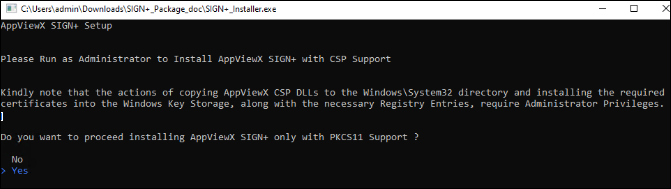
- Enter the requested details to install the prerequisites for using the AppViewX PKCS#11 Provider with native signing tools.
Linux
- Extract the SIGN+_Package.zip and open the extracted folder.
- Use the following command to provide execution permissions to the
SIGN+_Installer executable
file.
chmod +x <path_to_SIGN+_Installer> - Execute the SIGN+_Installer executable using the following
command.
./<path_to_SIGN+_Installer> - Enter the requested details to install the prerequisites for using the PKCS#11 Provider with native signing tools.
MacOS
- Extract the SIGN+_Package.zip and open the extracted folder.
- Use the following command to provide execution permissions to the
SIGN+_Installer executable
file.
chmod +x <path_to_SIGN+_Installer> - Execute the SIGN+_Installer executable using the following
command.
./<path_to_SIGN+_Installer>Note: If the executable is blocked from running on macOS, go to System Settings > Privacy & Security > Security, locate SIGN+_Installer, and click "Allow Anyway" to proceed with execution. - Enter the requested details to install the prerequisites for using the
PKCS#11 Provider with native signing tools.Note: The PKCS#11 library for macOS is compiled for x64 architecture to maintain backward compatibility. Therefore, when using PKCS#11 with other tools on ARM-based Macs (M-series), make sure to download and use the x64 versions of the respective tools (e.g., Jarsigner, Java) for signing.
SIGN Installer Functionalities
The SIGN+_Installer includes functionality that allows you to upgrade your existing installation with newly configured Signing Policies and Libraries. This eliminates the need to download a new SIGN+_Package. The available functionalities are listed below:
SIGN+_Installer Help
The SIGN+_Installer help command lists down all the supported functionalities of the SIGN+_Installer. For more information on a specific command use SIGN+_Installer help <command>
"SIGN+_Installer.exe" help
Available commands:
        - install: Usage: SIGN+_Installer Install --authtype <basic|oauth> --username <username> --password <password> --localMachine --overwriteInstallation
        - updatecredentials: Usage: SIGN+_Installer UpdateCredentials
        - updateconnectorurl: Usage: SIGN+_Installer UpdateConnectorURL
        - upgrade: Usage: SIGN+_Installer Upgrade --binary --certs --both --overwriteInstallation
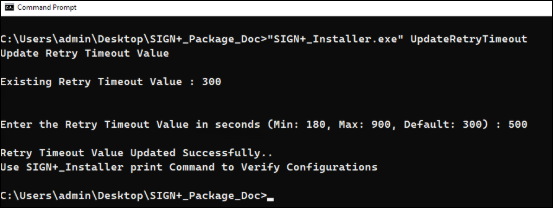
        - updateretrytimeout: Usage: SIGN+_Installer UpdateRetryTimeout
        - print: Usage: SIGN+_Installer Print
        - uninstall: Usage: SIGN+_Installer Uninstall
        - help: Usage: SIGN+_Installer Help <command>
"SIGN+_Installer.exe" help install
Usage: SIGN+_Installer Install --authtype <basic|oauth> --username <username> --password <password> --localMachine --overwriteInstallation
Install AppViewX SIGN+ with the specified options.
Options:
--authtype: Specify Basic Authentication or oAuth Based Authentication
--username: The username or clientId used for authentication.
--password: The password or clientSecret used for authentication.
--localMachine: Install certificates in LocalMachine Store (Default is CurrentUser)
--overwriteInstallation: Force or overwrite the existing installation.Interactive Installation:
During installation, users are prompted to select the target certificate store. By default, CurrentUser is selected, which installs the certificate in the current user’s Personal store. Users can also choose LocalMachine, which installs the certificate in the local machine’s Personal store.
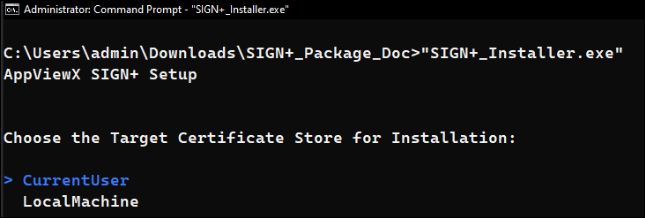
Silent Installation:
You can specify the target certificate store as a command‑line argument when running the installer in silent mode.
To install the certificate in the LocalMachine store, use the--LocalMachine flag. To install the certificate in the
CurrentUser store, use the --CurrentUser flag. If no flag is
provided, the installer installs the certificate in the CurrentUser store by
default.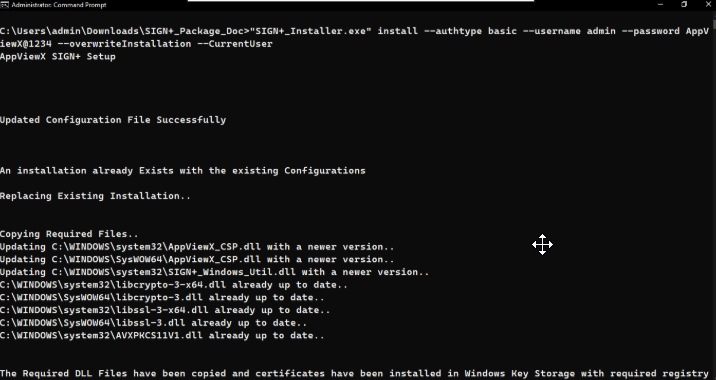
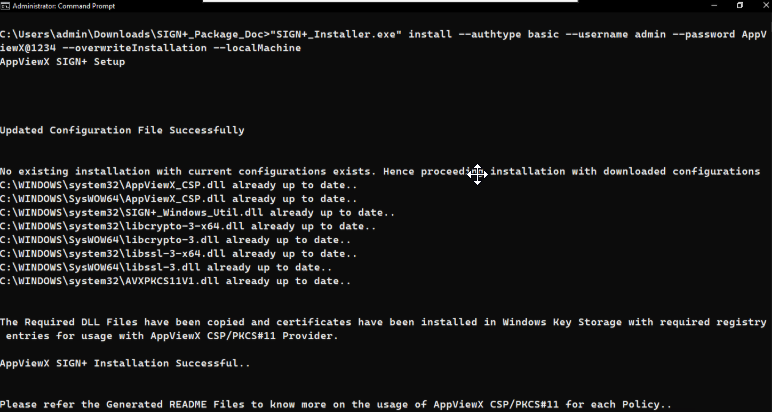
- When CurrentUser is selected, all required certificates and configuration files are copied to the user’s %APPDATA% directory.
- When LocalMachine is selected, the required certificates and configuration files are copied to the %PROGRAMDATA% directory.
- When AppViewX Sign+ is installed for both CurrentUser and LocalMachine, the signing using CSP/PKCS#11 will always prioritize the configuration located under the user’s %APPDATA% directory. If a user-level installation is detected, it will take precedence over the machine-level installation.
- Therefore, if you intend to perform a LocalMachine installation after previously installing under CurrentUser, make sure to uninstall the user-level installation first. Alternatively, you may install the LocalMachine package under a different system user account.
- When installing to the LocalMachine store, signing may need to be performed with elevated or administrator privileges, as accessing the LocalMachine certificate store requires administrator privileges.
SIGN+_Installer Install - Usage
The SIGN+_Installer install command is used to install the SIGN+_Package without user interaction. This is helpful for non-interactive shell environments such as CICD Pipeline Environments.
"SIGN+_Installer.exe" install --authtype basic --username “user” --password "password" --overwriteInstallation- - - authtype - Specified the type of authentication to be used. Accepts the values “basic” for Username/Password based authentication and “oauth” for Service Account Based Authentication.
- - - username - Accepts the Username or clientId used for authentication.
- - - password - Accepts the Password or clientSecret used for authentication.
- - - overwriteInstallation - Specify this
parameter to overwrite the existing installation with new configurations
from the SIGN+ Server.Note: In Linux or MacOS, it is recommended to provide username or password arguments in single quotes if it contains any special characters. This will prevent the misinterpretation of special characters (e.g., the dollar sign '$') as argument parameters.Sample Usage:
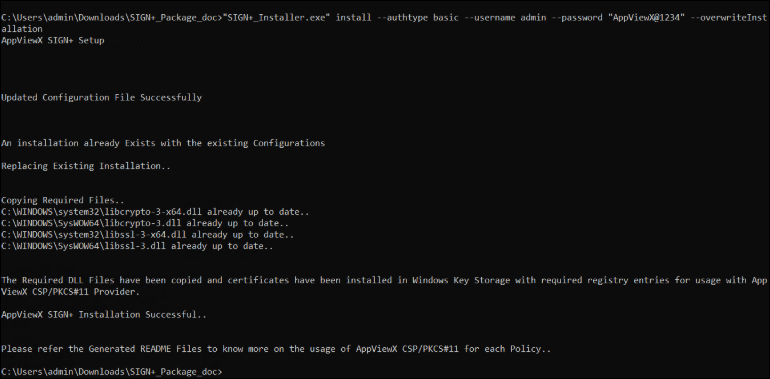
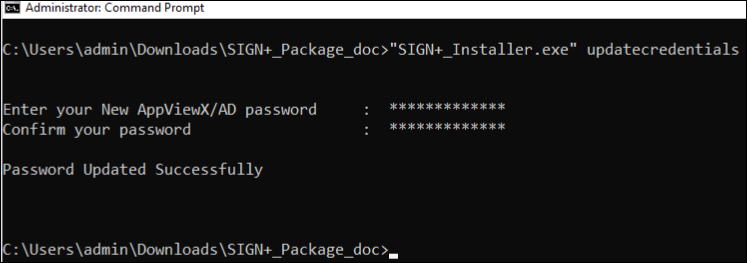
SIGN+_Installer UpdateCredentials
This option allows the user to update the authentication type and credentials. This can be helpful in cases where the password or client secret is expired or has to be changed post installation.
"SIGN+_Installer.exe" updatecredentials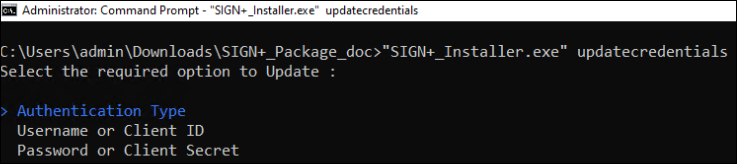
Updating the Authentication type
Select the required Authentication Type to be used by selecting the required option using the Arrow Keys.


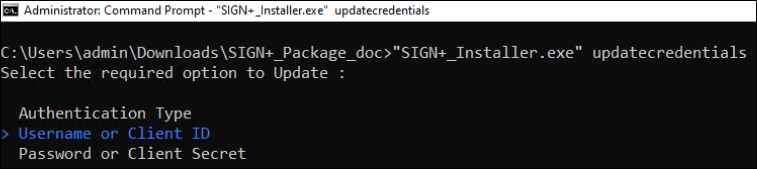
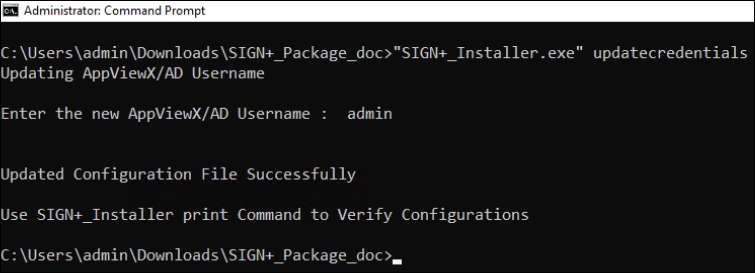
Updating Username or Client ID
This option can be selected to update the Username or Client ID used for Authentication
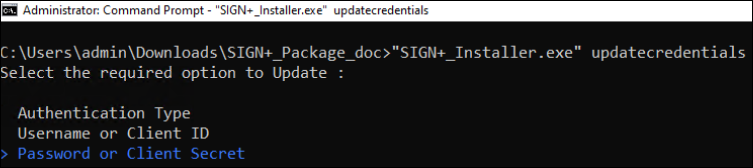
Updating Password or Client Secret
This option can be selected to update the Password or Client Secret used for Authentication.
SIGN+_Installer UpdateConnectorUrl
This option can be used in cases where the SIGN+ API Connector URL has to be changed post installation. This is helpful in cases if the package was downloaded by selecting the cloud connector option but it has to be updated to a different URL like the Load Balancer URL
"SIGN+_Installer.exe" updateconnectorurl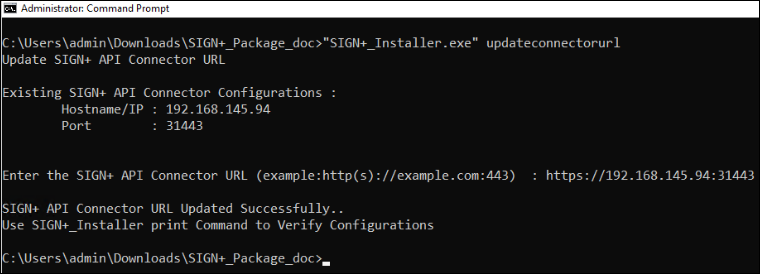
SIGN+_Installer Upgrade
This option can be used in cases where the existing installation has to be upgraded with new SIGN+ Policy Configurations or libraries or both without the need to download and install a new SIGN+ Package.
Upgrade Certificates
This option can be used to upgrade the existing installation with the newly configured policies configured in the SIGN+ Server. This will automatically download and install the certificates and policy configurations of any modified or newly added policy in the server and install in the local machine. The corresponding README Files will also be generated.
"SIGN+_Installer.exe" upgrade --certs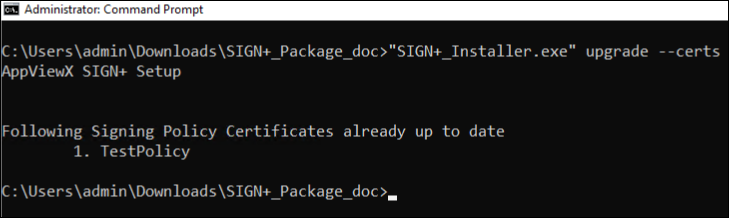
"SIGN+_Installer.exe" upgrade --certs --overwriteInstallation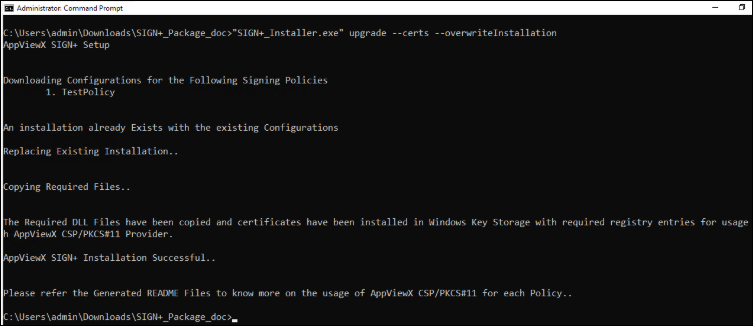
Upgrade Binary
This option can be used to upgrade the existing installation with the latest version of the AppViewX CSP and PKCS#11 Library Files.
"SIGN+_Installer.exe" upgrade --binary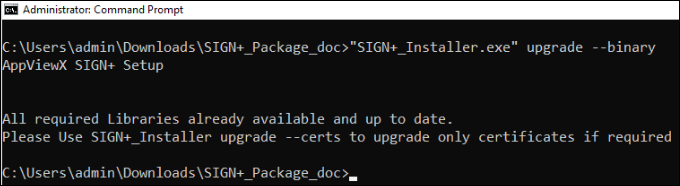
"SIGN+_Installer.exe" upgrade --binary --overwriteInstallation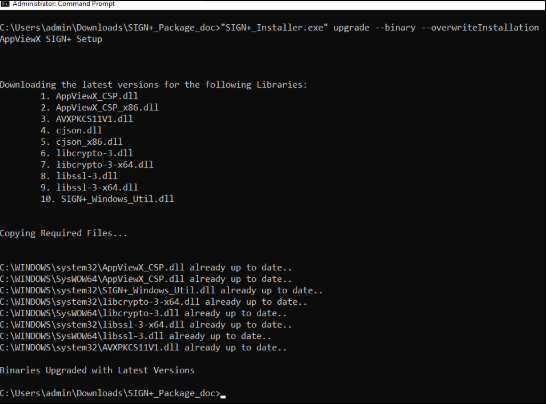
Upgrade Both
"SIGN+_Installer.exe" upgrade --both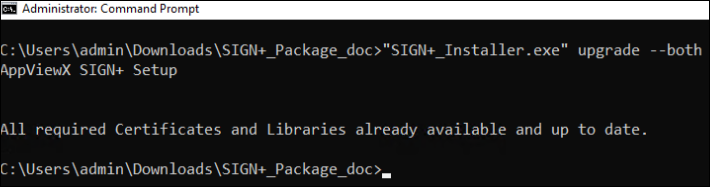
"SIGN+_Installer.exe" upgrade --both --overwriteInstallation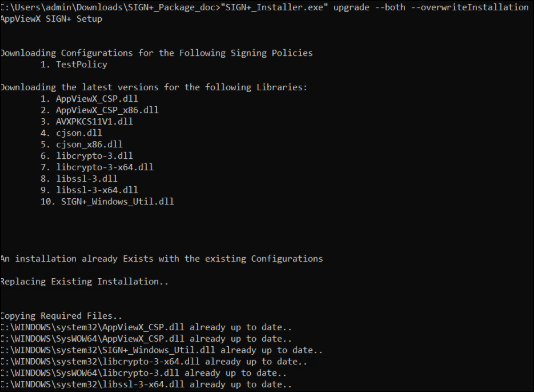
SIGN+_Installer Print
"SIGN+_Installer.exe" print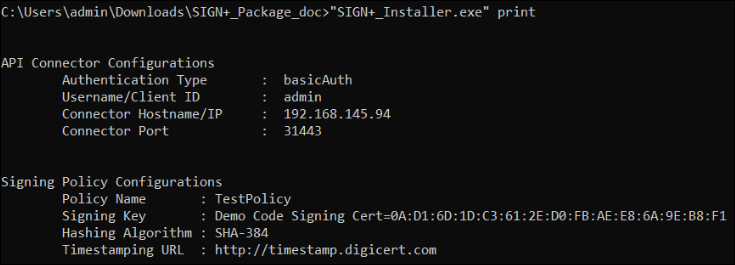
SIGN+_Installer UpdateRetryTimeout
"SIGN+_Installer.exe" UpdateRetryTimeoutThe minimum supported value is 180
The maximum supported value is 900
SIGN+_Installer Uninstall
The Uninstall option in the SIGN+_Installer executable can be used to clean up the SIGN+ installation by removing the library files, configuration files, and log files.
"SIGN+_Installer.exe" Uninstall
AppViewX SIGN+ Uninstaller


Deleting Configuration Files..
Deleting Library Files..
Deleting Temporary Log Files..

Uninstallation Successful

Press Enter key to exit...