
Delete NginxPlus LB Server
This workflow enables you to delete HTTP or TCP LB Server and Upstream Servers.
To run this workflow:- Go to Menu > ADC+ > AUTOMATION > Workflow Catalog > View/Run
- Click the Nginx Plus category on the View/Run Workflows page.
-
On the popup window, hover the mouse over the Delete
NginxPlus LB Server workflow.
The Run and Schedule buttons are displayed.
-
Click
 .
The Request > Delete NginxPlus LB Server :: FormBuilder page is displayed.
.
The Request > Delete NginxPlus LB Server :: FormBuilder page is displayed. - Select a datacenter, device, and Nginx source path in the Device Details section.
- Choose the load balancing type and fetch and select the load balancing IP and Port in the LB Server And Upstream section.
-
Click the Submit button.
Note:
- If you want to save this form to edit it later, click the Save Draft button, and then click Ok in the Confirmation popup window. The form will be saved as Open request under Request > My Request.
- If you want to cancel this form, click the Cancel button.
-
In the Diff Checker stage, click the
<Compare>button to view the updates, and then click the Submit button. -
In the Backup Chosen Config stage, click the
<Submit>button. -
In the NGINX Config Check stage, click the
<Execute>button. -
In the NGINX Config Reload stage, click the
<Execute>button. -
In the NGINX Status Check stage, click the
<Submit>button. -
In the Delete Backup of Chosen Config stage, click the
<Execute>button. -
The workflow is created.
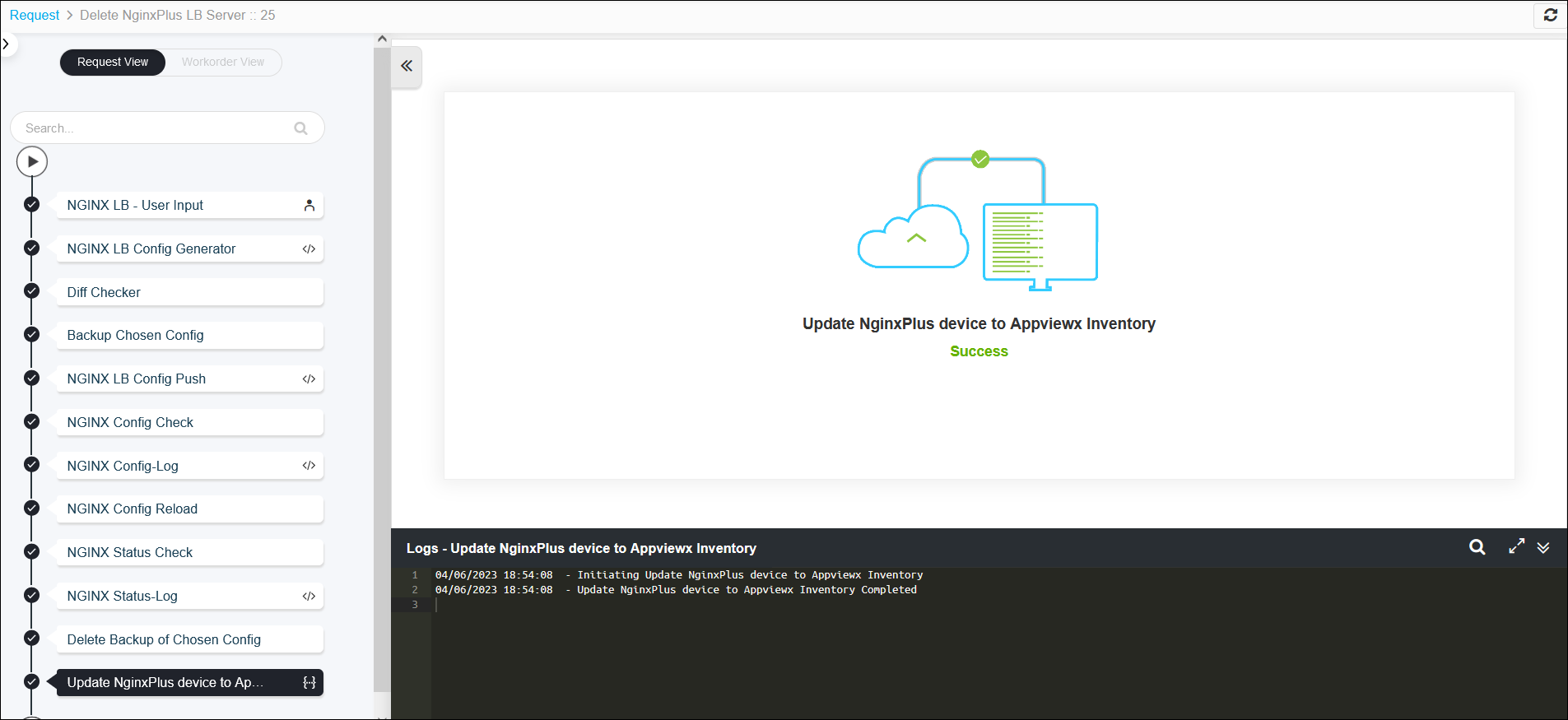 Note: The stages of the request are shown in the left-side of the screen. To view a particular stage of the request, click the respective stage.
