
Customize the Variable for a Task
The variables can be customized for a task after creating a workflow also.
To customize the variables for a task,
-
Go to Menu > Studio > Workflow.
The Workflows page appears.
- Click the workflow for which the variables are to be customized.
- Disable the workflow by clicking the OFF toggle button.
 The Confirmation popup appears.
 - Click Yes to confirm the disabling workflow.
- Click twice on the desired task to customize the variables.
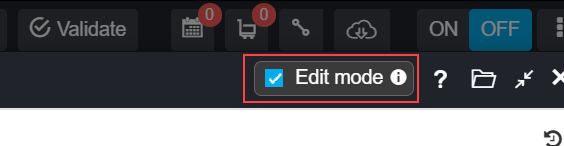
- Make sure the Edit Mode check box is selected.
 The workflow Properties page appears.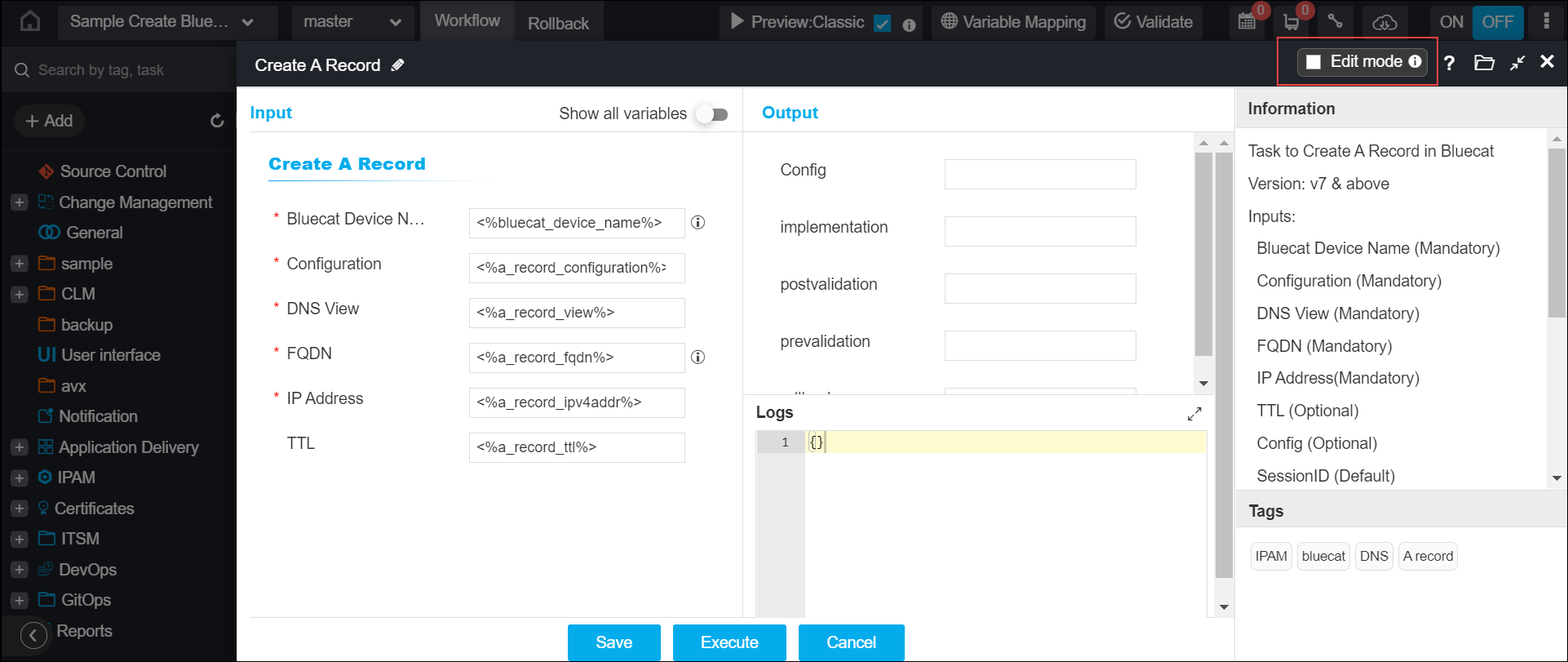
- Click the Variables tab.
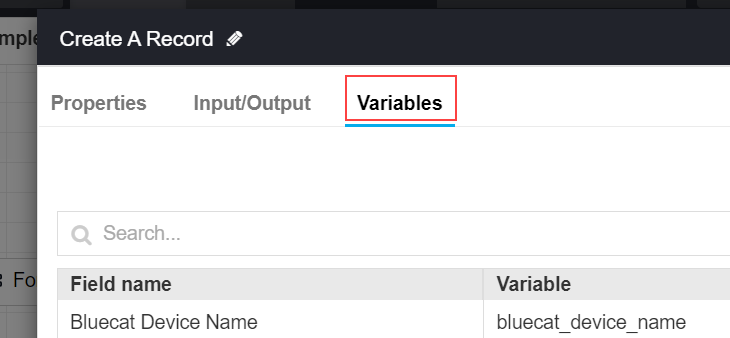 Note: Make use of the scroll bar to view the details of the variables.
 -
You can update any of the following details for the variables:
-
Field Type - select the field type from the drop-down option. For example, Description, Password, Dropdown, etc.
-
Parent - select the parent field from the drop-down option.
-
Type - select the type from the drop-down option. For example, String, JSON, Email, etc.
-
Show variables - enable or disable the variable by clicking the toggle button.
-
Mandatory - mark whether the field is mandatory or not by clicking the toggle button.
-
-
Click the Save button, and then close the window.
The updated variables are displayed in the form.
