
Issues in Control Center Search
- Result Exceeded the Maximum Record Size for the Control Center Export.
- Log in to AppViewX.
- Navigate to Menu > ASSET MANAGEMENT > App Search.
- Select the objects to export and click the export icon.
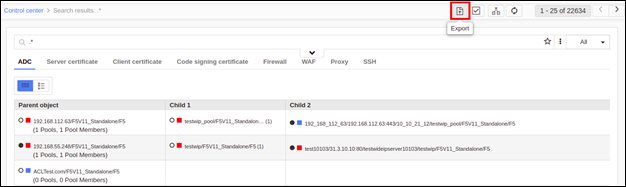
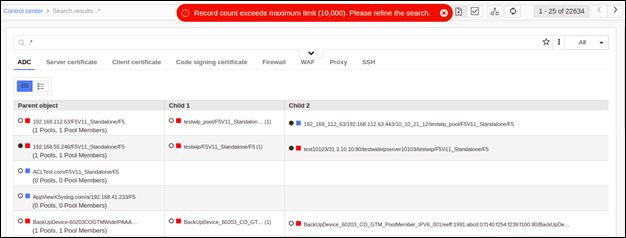
Error Message Possible Cause Possible Solution Result exceeded the max record size. Result size exceeded maximum limit. For Application View, the limit is 10000 and for Infrastructure View the limit is 300000. Modify your search criteria to limit the search results.
-
No Content Found for Control Center Export
-
Log in to AppViewX.
-
Navigate to Main Menu > Control center > ADC tab.
-
Search for object(s) in the search bar and click the export icon.
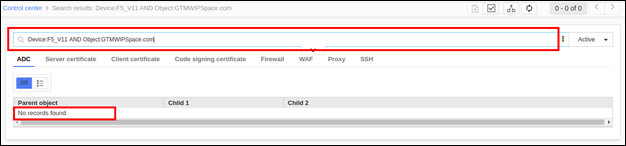
Error Message Possible Cause Possible Solution No contents found for search result. The search criteria did not match any results. Modify your search criteria to match results.
-
-
No Records Found
-
Log in to AppViewX.
-
Navigate to Main Menu > Control center > ADC tab.
-
Search for object(s) in the search bar.
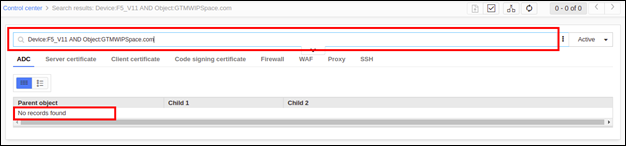
Error Message Possible Cause Possible Solution No records found are shown when I search for an object in the Control center. The object might have been deleted in the device. Check for the existence of the object in the device.
No records found are shown when I search for an object in the Control center. If the object is present in the device and still it is not shown in the Control Center, the filter in the Control center page might be checked. Check for the HA state of device(a drop down filter) in the Control center page. It will be available to the right of the search box. Change the value to All. No records found are shown when I search for an object in the Control center. ACL permissions to this object might not be allowed for the user role. Check with the adminstrator whether the user has permissions to view the object/device. If so, request for permission and provide a config fetch of the device.
No results found The search criteria did not match any results. Modify your search criteria to match results. No results found Search filters led to a larger result and 16mb cap limit is reached in Mongo Server. Narrow your search criteria to limit the search results. No results found User does not have permission to view the results. Navigate to Account -> Resource -> Modify Resource -> Select Access Control -> Under Access Control tab assign permission to ADC Objects. Refer admin guide.
-
-
Object not Found
-
Log in to AppViewX.
-
Navigate to Main Menu > Control center > ADC tab.
-
Search for object(s) in the search bar.
-
Click the required object to open in the topology view.
Error Message Possible Cause Possible Solution Object not found The object(s) must have been removed after config sync. Login to device and check if the object was deleted from the device. Object not found The device in which the object exists must have been deleted from AppViewX. Navigate to 'Inventory' -> 'Device' -> 'ADC' , and check if the device has been deleted. If true, re-add device or request topology for objects in other available devices. Refer to the admin guide. Object not found The object(s) for which topology was requested is invalid. 1. If AppViewX is not in sync with the device, wait for midnight config sync.
2. If AppViewX is not in sync with the device, navigate to 'Inventory' -> 'Device' -> 'ADC' -> select the corresponding device -> click on 'config fetch' icon. Refer to the admin guide.
-
-
The Regex Expression is Invalid
-
Log in to AppViewX.
-
Navigate to Main Menu > Control center > ADC.
-
Search for object(s) in the search bar using a regex expression.
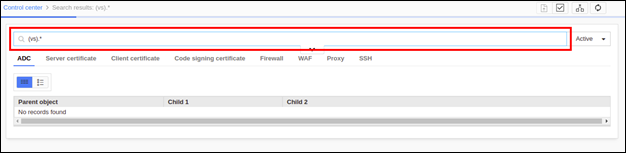
Error Message Possible Cause Possible Solution The Expression is Invalid. The keywords used for search is invalid. Use the available keywords in the control center page. Navigate to Control center -> Click on the Expand icon near the Search bar and use one of the available search keys. The Expression is Invalid. The search term contains special characters ('(',')') that led to an invalid expression. If the search term contains special characters, try to use a different filter.
-
-
Object Dictionary does not Contain Data for the Given Code.
-
Log in to AppViewX.
-
Navigate to Main Menu > Control center > ADC.
-
Search for object(s) in the search bar.
Error Message Possible Cause Possible Solution Object dictionary does not contain data for the given code. Script to populate the object dictionary was not executed. Verify if AppViewX supports the object type specified by the code. Object dictionary does not contain data for the given code. AppViewX does not support the object type specified by the code. Contact AppViewX support to execute the script to populate the object dictionary.
-
